Overview
The Upcoming Assets tab gives administrators and maintenance supervisors full visibility into scheduled maintenance and inspection workloads. The system automatically filters equipment records using a forward-looking parameter (nextInspectionFrom), sorting assets chronologically by their upcoming due dates so teams can plan resources and schedule technician visits effectively.
Pre-requisites:
1. Asset:view and Asset:access-location-unassigned permissions.
Accessing and Navigating the Upcoming Inspections View
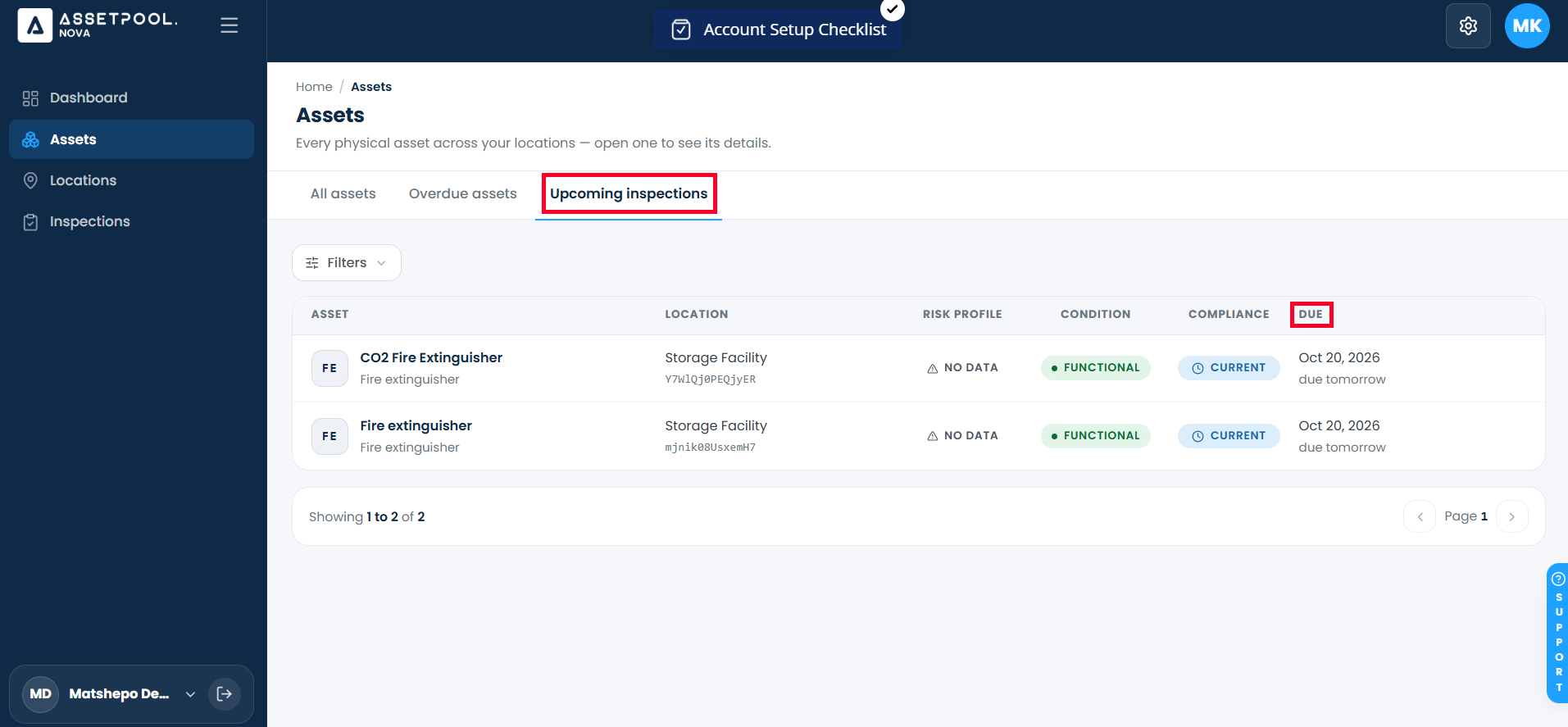
Navigate to Assets > Upcoming Inspections tab.
The system automatically loads the filtered Upcoming Assets Table, applying a query for future inspection schedules sorted by nextInspectionAt.
Review the upcoming summary panel and directory table columns:
Due Date Column: Displays the scheduled date and time remaining until the next required inspection (e.g., Due in 2 days or Due Sep 20, 2026).
Asset Identity & Location: Identifies the target equipment, its assigned site or facility, and its linked Asset Type category.
Click on any asset entry in the table to open its detail view, review assigned checklists, or launch an early inspection check.
Frequently Asked Questions & Troubleshooting
How far into the future does the Upcoming tab filter?
The Upcoming view applies a forward-looking date filter (nextInspectionFrom) starting from the current date, displaying all equipment scheduled for routine checks within your workspace's configured inspection window.
Can technicians complete an inspection before its scheduled due date?
Yes. Technicians can select an asset from the Upcoming list at any time and tap Start Inspection to complete the required checklist ahead of schedule.
What happens when an upcoming inspection date passes without being completed?
As soon as an asset's nextInspectionAt timestamp passes without a completed inspection entry, the system automatically transitions the record from the Upcoming tab to the Overdue tab.
Was this article helpful?
That’s Great!
Thank you for your feedback
Sorry! We couldn't be helpful
Thank you for your feedback
Feedback sent
We appreciate your effort and will try to fix the article