Overview
Administrators and managers can decommission equipment that is retired, damaged beyond repair, or removed from active operational service. Decommissioning an asset updates its operational state, displays a clear Decommissioned status indicator, resets health scores, and removes the item from routine field inspection workflows while preserving its full historical record.
Pre-requisites:
1. Asset:view and Asset:access-location-unassigned permissions.
Decommissioning an Asset
Navigate to Assets.
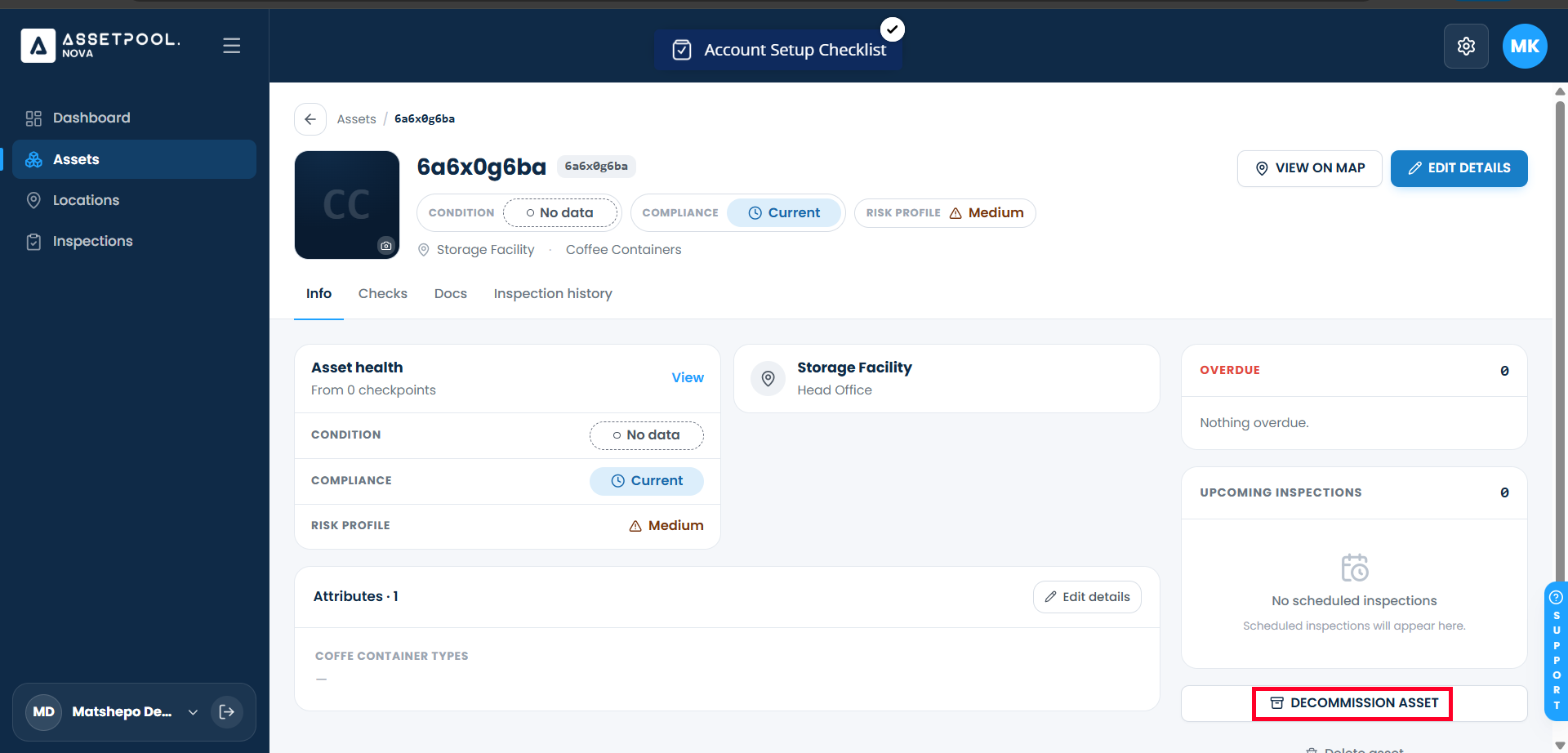
Click on the View button of the target asset row to open its Asset Detail page.
Navigate to the side menu and click Decommission Asset.
When prompted by the system confirmation dialog, confirm your action.
The system will issue the update and refresh the asset view.
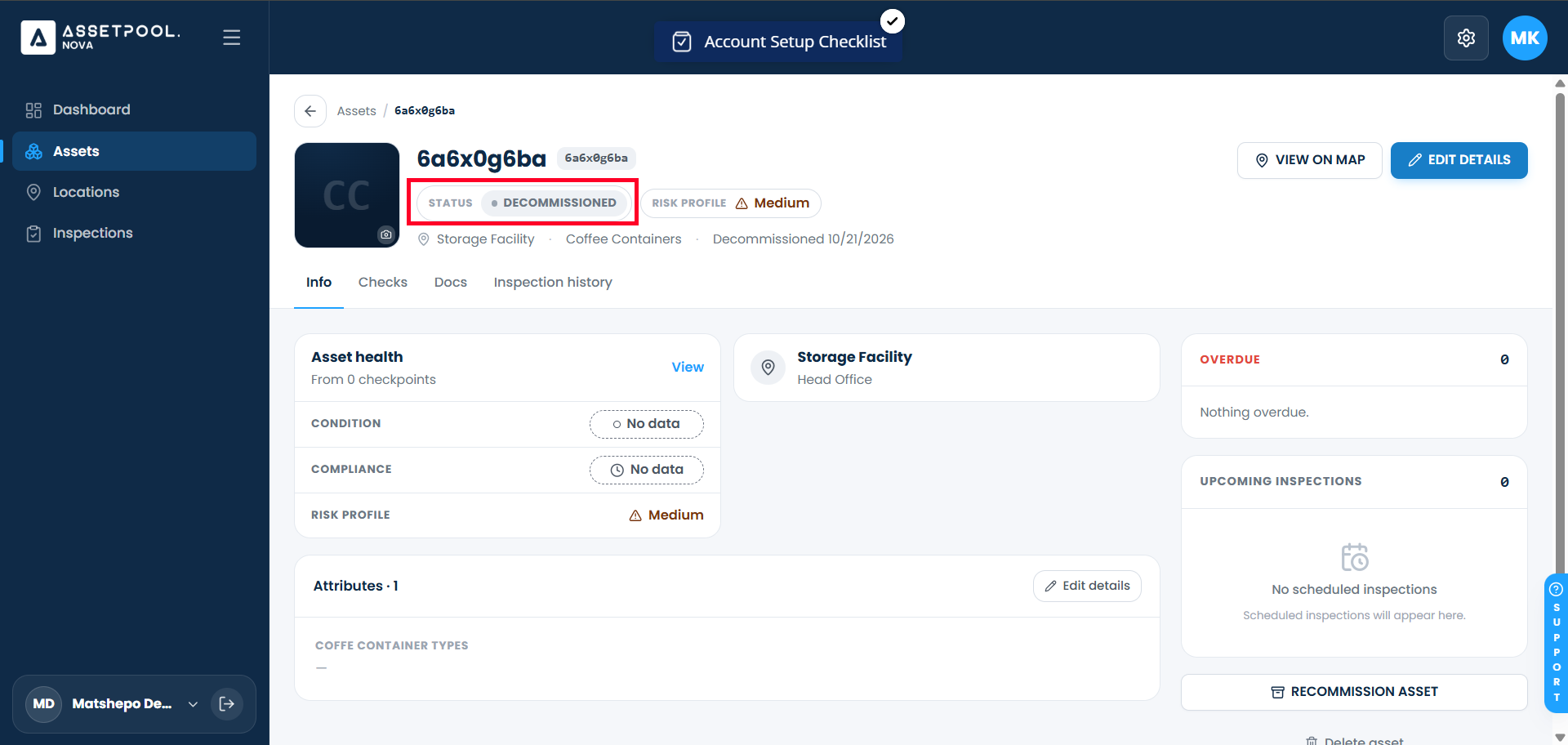
Verify the updated asset status:
A Decommissioned badge or pill indicator now displays prominently on the asset header.
The asset identity card explicitly marks the item as Decommissioned.
Health scores and active maintenance metrics reset.
Frequently Asked Questions & Troubleshooting
What happens to historical inspection logs when an asset is decommissioned?
Decommissioning an asset preserves all historical inspection logs, compliance reports, and check audit records. The equipment's permanent audit trail remains fully viewable in reporting modules.
Will a decommissioned asset still appear in mobile inspection routines?
No. Decommissioning an asset automatically removes it from active field inspection lists, preventing technicians from selecting or inspecting the retired equipment.
Can a decommissioned asset be reactivated later?
Yes. Administrators can open a decommissioned asset's detail page and select Reactivate (or Restore Asset) to return it to active operational status if returned to service.
Was this article helpful?
That’s Great!
Thank you for your feedback
Sorry! We couldn't be helpful
Thank you for your feedback
Feedback sent
We appreciate your effort and will try to fix the article