Overview
Administrators can permanently delete asset records that were created in error, duplicated, or removed permanently from inventory. Executing an asset deletion sends a permanent removal request to the workspace database and automatically redirects you back to the main Assets directory view upon completion.
Pre-requisites:
1. Asset:view and Asset:access-location-unassigned permissions.
Deleting an Asset
Navigate to Assets.
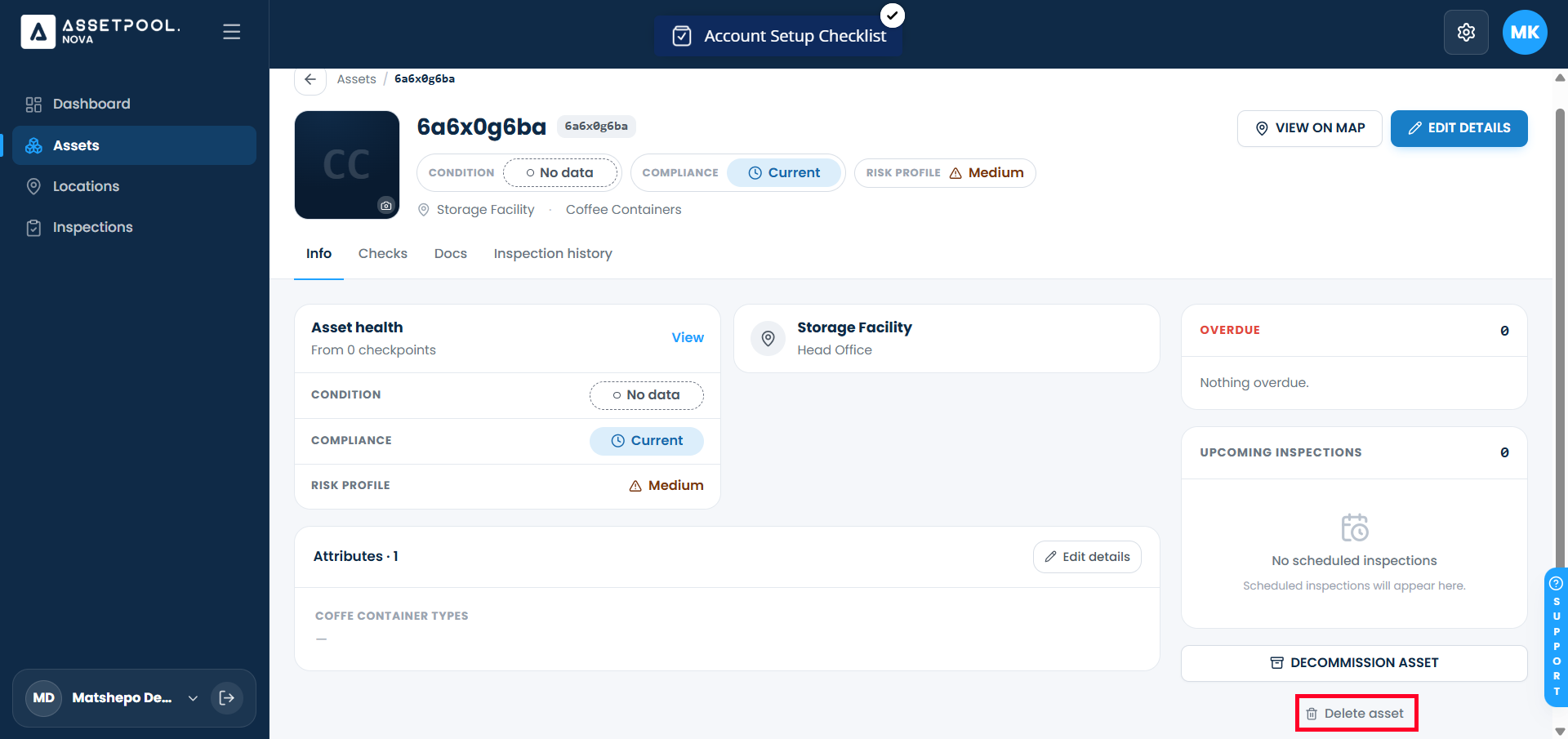
Click on the target asset row to open its Asset Detail page.
Locate the action controls menu and click Delete Asset.
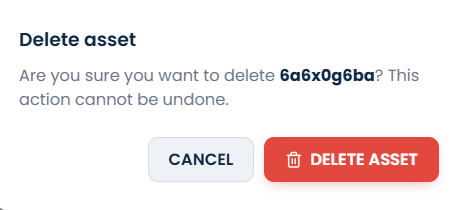
When prompted by the system confirmation dialog, confirm your intent to permanently delete the asset.
The system will issue the removal request. Upon successful deletion, the detail view will close and automatically redirect you back to the primary Assets list view.
Verify that the deleted equipment record no longer appears in your active assets table.
Frequently Asked Questions & Troubleshooting
Can a deleted asset be recovered?
No. Deleting an asset permanently removes the record and its unique system identifier from your active database. If you only want to take equipment out of service while retaining its inspection history, use Decommission Asset instead.
What is the difference between deleting and decommissioning an asset?
Decommissioning marks an asset as inactive, removes it from routine inspection workflows, and preserves all historical logs for compliance auditing. Deleting permanently removes the asset record entirely.
Who has authority to delete assets?
Asset deletion is restricted to Organization Administrators and Account Owners to prevent accidental removal of equipment inventory records.
Was this article helpful?
That’s Great!
Thank you for your feedback
Sorry! We couldn't be helpful
Thank you for your feedback
Feedback sent
We appreciate your effort and will try to fix the article