Overview
Administrators can delete unneeded, obsolete, or duplicate Asset Types from their organization settings. Deleting an asset type cleans up your equipment categories, ensuring team members only assign active, approved asset types when managing equipment.
Pre-requisite:
1. Asset-type:view , Asset-type:edit and Asset-type:delete permissions.
Deleting an Asset Type
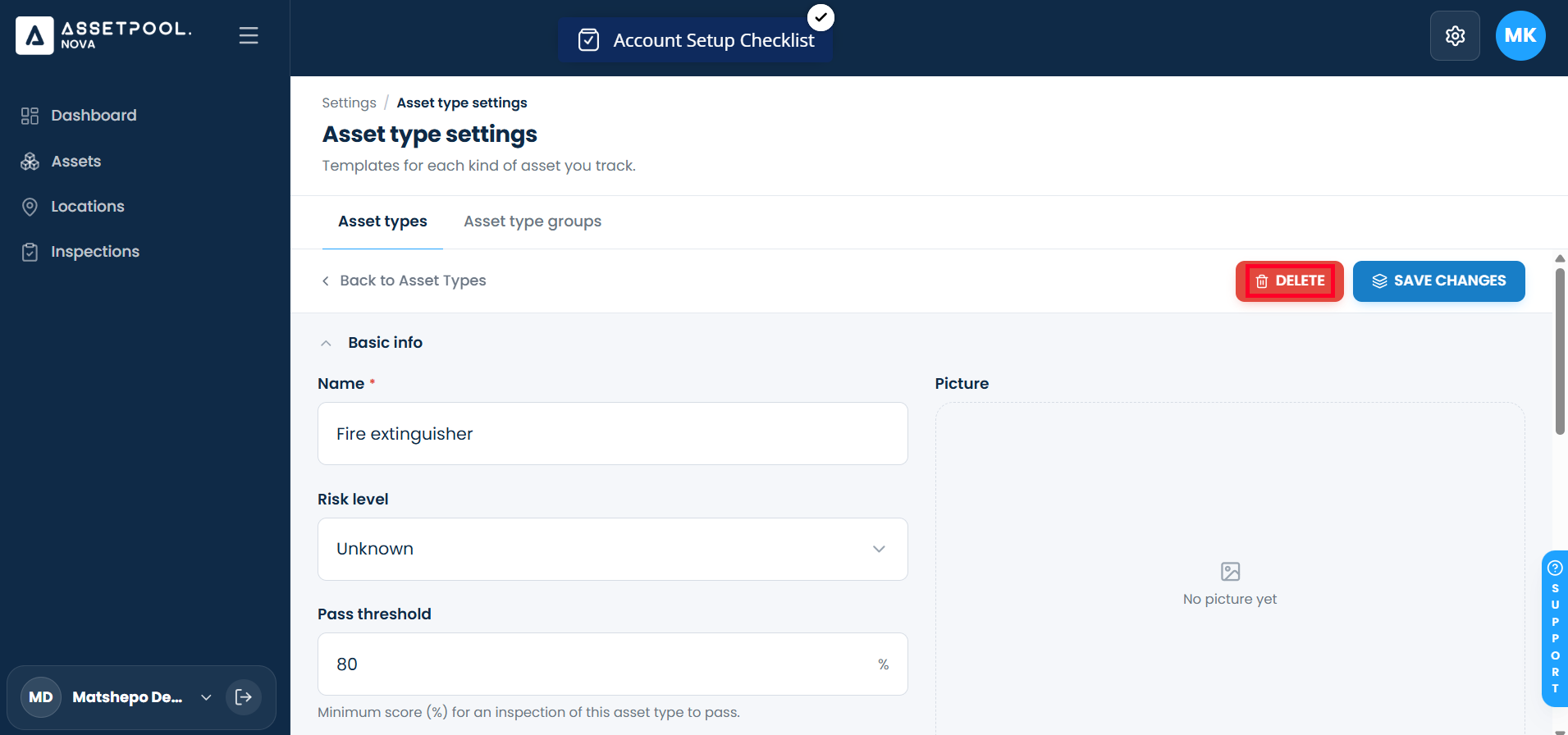
Navigate to Settings > Asset Type Settings > Asset Types tab.
Locate the asset type you wish to remove and click Edit.
On the edit page, click the Delete button.
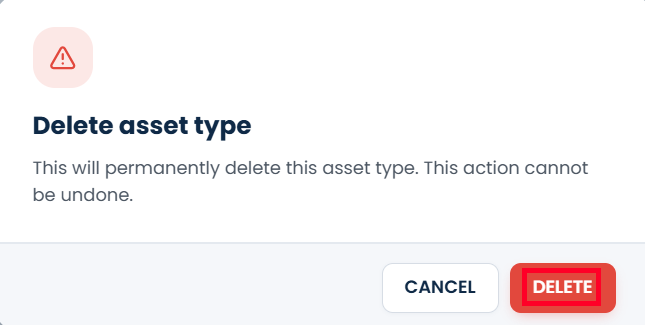
A confirmation modal will appear asking you to confirm the deletion.
Click Delete in the modal to finalize the removal.
You will return to the primary Asset Types management list, where the deleted entry will no longer appear in the table.
Frequently Asked Questions & Troubleshooting
Can a deleted Asset Type be restored?
No, deleting an asset type is permanent. If you need the asset type again in the future, you will have to create it again manually.
Can I delete an Asset Type that has active equipment assigned to it?
You should reassign or remove any active assets linked to an asset type before deleting it to prevent reporting inconsistencies or errors in your asset directory.
Was this article helpful?
That’s Great!
Thank you for your feedback
Sorry! We couldn't be helpful
Thank you for your feedback
Feedback sent
We appreciate your effort and will try to fix the article