Overview
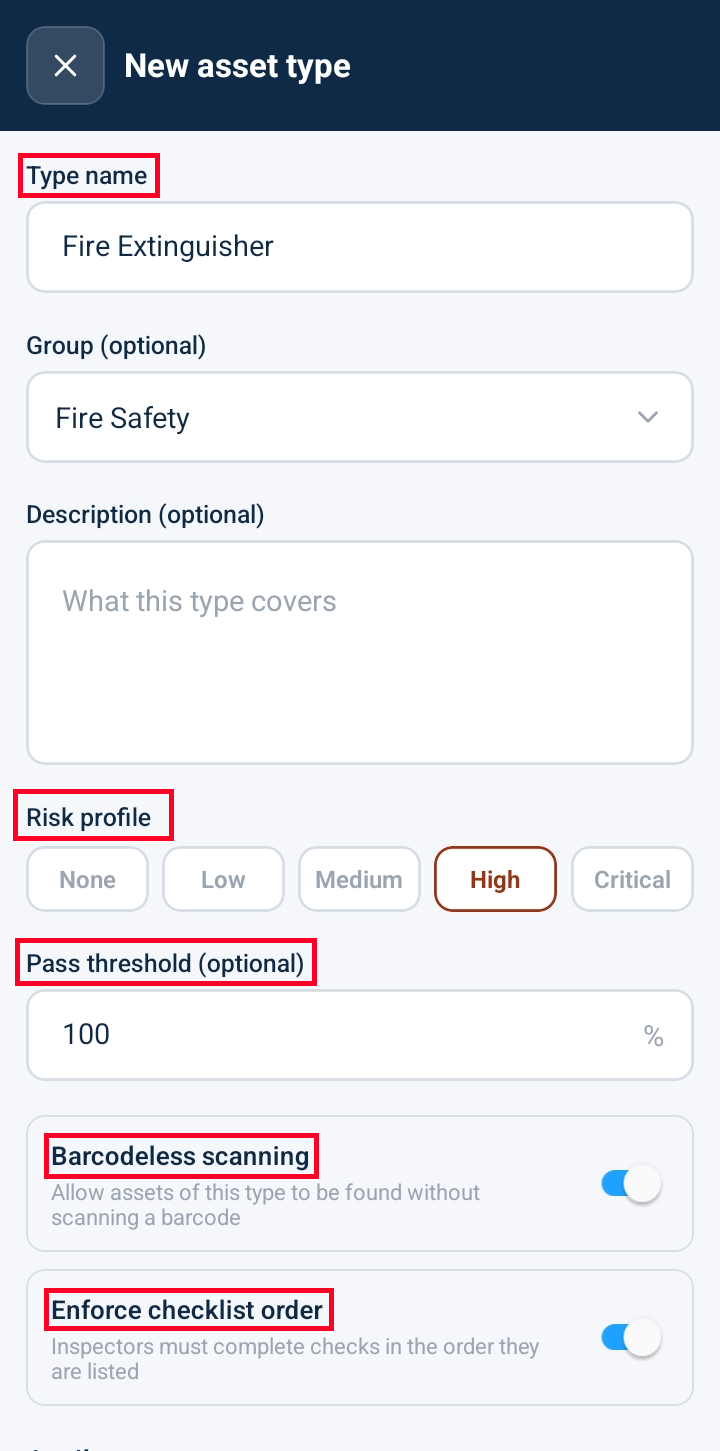
Creating or editing an Asset Type category allows administrators to define equipment metadata, risk levels, and operational behaviour across all linked assets. Using the manual editor, managers can assign description details, group categories, risk profiles, barcode-less scanning toggles, checklist order rules, and view custom attribute configurations.
Creating Asset Type in the Manual Editor
Navigate to Asset Settings > Asset Types and tap + New Asset Type (or open an existing asset type in the manual editor).
Complete the primary configuration fields:
Description: Enter an operational summary describing the asset category.
Asset Type Group: Select an assigned category group from the dropdown list.
Scroll to the Risk Profile section and select the appropriate operational risk rating:
None
Low
Medium
High
Critical
Scroll down to configure operational controls and switches:
Barcode-less Scanning Toggle: Enable to allow field technicians to identify and inspect assets belonging to this type without requiring a physical barcode scan.
Enforce Checklist Order Toggle: Enable to require technicians to complete inspection checklist steps strictly in sequential order.
Review the Desktop-Managed Attributes Notice at the bottom of the editor:
This notice confirms that custom attribute schema definitions (such as text fields, dropdowns, and date pickers) are managed centrally via the web application interface.
Click Save Asset Type to commit your changes.
Frequently Asked Questions & Troubleshooting
What is the purpose of assigning a Risk Profile to an Asset Type?
The Risk Profile (ranging from None to Critical) helps prioritize maintenance schedules, highlight high-risk equipment during audits, and trigger automated alerts when critical assets fail inspections.
What happens when "Enforce Checklist Order" is toggled on?
When enabled, technicians performing field inspections on assets of this type cannot skip ahead or fill out checkpoints out of order—they must complete each step sequentially before the next step unlocks.
Why are custom attributes labelled as "Desktop-Managed"?
Complex custom attribute schemas (such as multi-select dropdowns, unit formulas, and numerical bounds) require desktop administrative tools for schema design. Once defined on the web platform, these fields automatically sync to mobile devices for data entry.
Was this article helpful?
That’s Great!
Thank you for your feedback
Sorry! We couldn't be helpful
Thank you for your feedback
Feedback sent
We appreciate your effort and will try to fix the article