Overview
Creating a comprehensive Asset Type allows administrators to define custom attributes, upload visual assets, set compliance thresholds, enable operational flags, and link default inspection checklists. When physical equipment is assigned to this category, all attached inspection routines, custom attributes, and scanning rules automatically apply.
Pre-requisite:
1. Asset-type:create and Asset-type:view permissions.
Creating an Asset Type
Navigate to Asset Type Settings > Asset Types tabs.
Click + Create Asset Type.
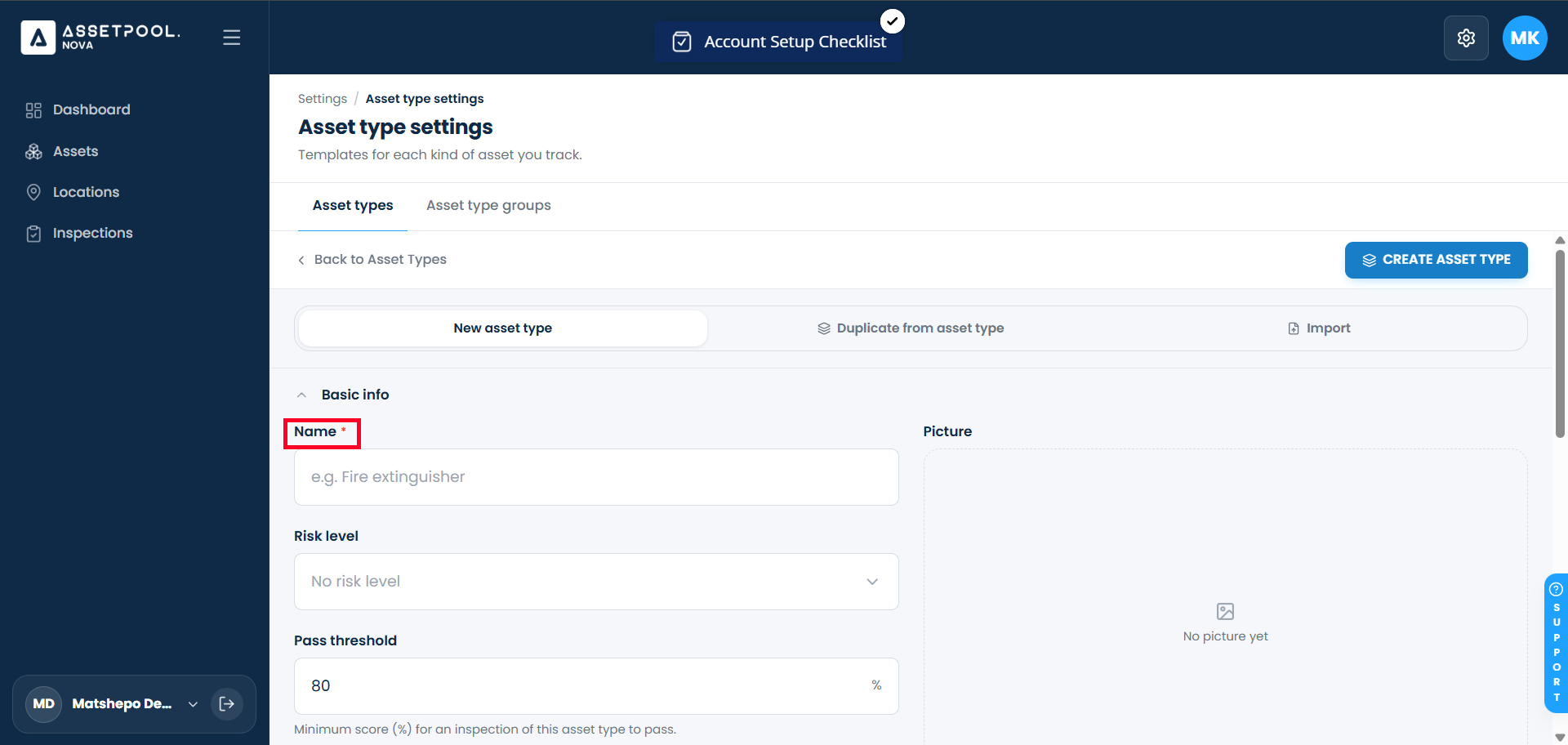
Complete the required basic fields:
Asset Type Name: Enter a unique title (e.g., Hydraulic Generators).
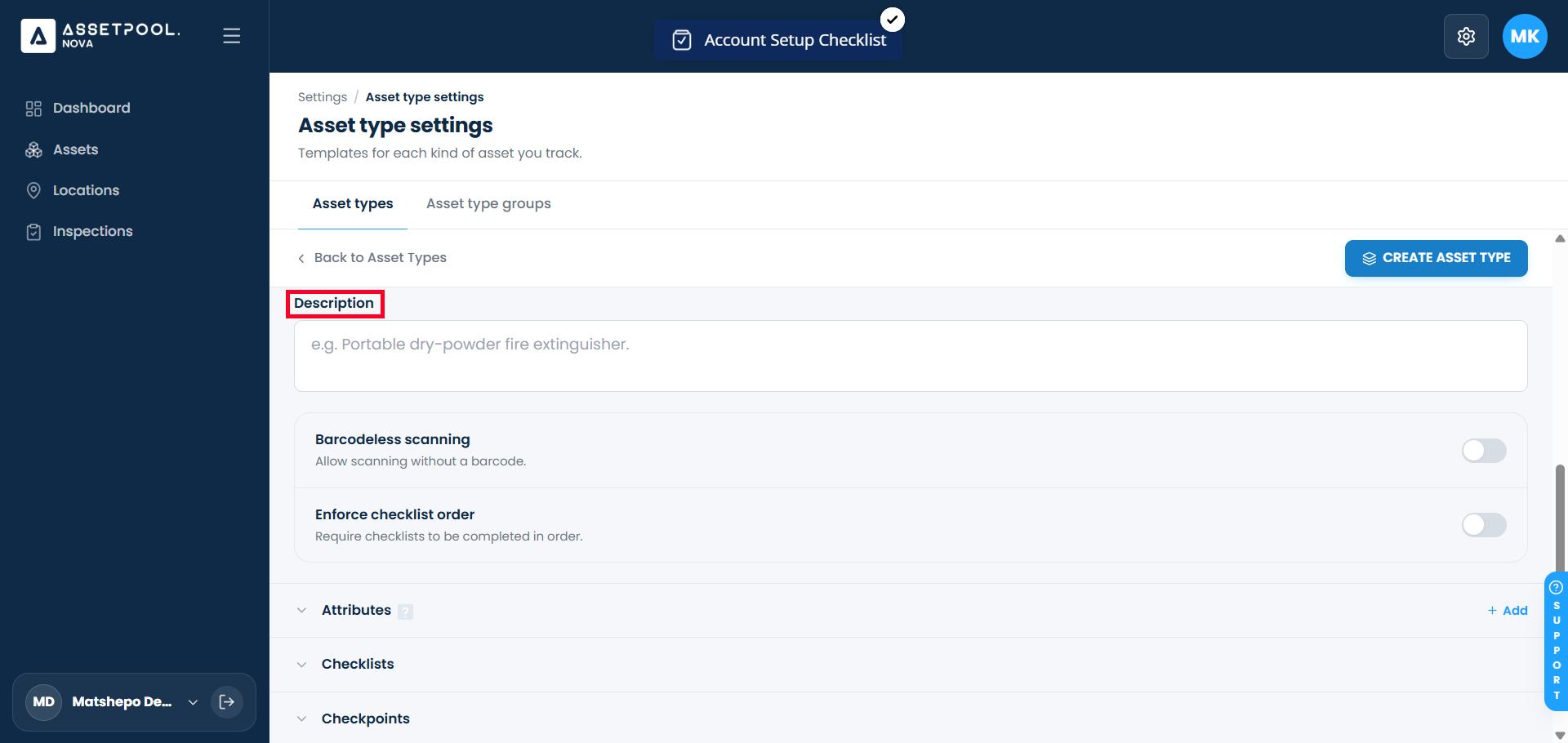
Description: Enter an operational summary or usage guidelines.
Set compliance and standard configurations:
Risk Profile: Select the appropriate risk classification from the dropdown options
Pass Threshold (%): Enter the minimum score required for an inspection to pass (e.g., 55).
Category Icon & Image: Select a distinct icon and upload a primary reference picture for the category.
Barcodeless Scanning: Toggle ON to allow technicians to initiate manual inspections without scanning a physical barcode.
Enforce Checklist Order: Toggle ON to mandate that technicians complete inspection steps in strict sequential order.
Add custom attributes in the Attributes section:
Click + Add Attribute to configure text fields (e.g., Full Text).
Click + Add Attribute to add single-select list options (e.g., Full List with options like Red and Blue).
Click to expand the Checklists section(optional):
Search for and select your desired checklist.
Click to expand the Checkpoints section(optional):
Search for and select your desired checkpoint.
Click Create Asset Type.
Verify that your new asset category appears in the main table with its custom attributes, icon, and linked checklists saved.
Frequently Asked Questions & Troubleshooting
What fields are mandatory when creating an Asset Type?
Both the Asset Type Name and Description fields must be completed before you can save a new asset type. You must also add at least one checklist or one checkpoint in order to save.
What is a Pass Threshold?
The Pass Threshold determines the minimum score percentage an asset must achieve during an inspection to receive a passing status. For example, a threshold set to 55 requires a score of 55% or higher.
Are Risk Level and Pass Threshold required fields?
While basic fields like Name and Description are mandatory, Risk Level and Pass Threshold may be optional depending on your organization's settings. However, configuring them ensures automatic score evaluation during maintenance checks.
Can I delete or edit an Asset Type after it has been created?
Yes, administrators can edit the name and description or delete asset types at any time from the primary Asset Types table, provided no active assets are currently locked to that type.
What happens when I enforce checklist order?
Enabling Enforce Checklist Order prevents field technicians from skipping steps or completing inspection points out of sequence during active maintenance checks.
Can I attach multiple checklists to a single Asset Type?
Yes. You can link multiple checklist templates to an Asset Type to cover different maintenance routines (such as daily pre-use checks vs. quarterly safety audits).
What is the difference between attaching a Checkpoint vs. a Checklist to an Asset Type?
Attaching a Checkpoint links a single, standalone evaluation item directly to the asset type.
Attaching a Checklist links a grouped collection of multiple checkpoints organized into a pre-defined sequence.
Can I attach both standalone checkpoints and full checklists to the same Asset Type?
Yes. You can link individual standalone checkpoints alongside comprehensive checklists to tailor maintenance requirements to your team's exact operational needs.
Was this article helpful?
That’s Great!
Thank you for your feedback
Sorry! We couldn't be helpful
Thank you for your feedback
Feedback sent
We appreciate your effort and will try to fix the article