Overview
Administrators can update existing Asset Types at any time to refine operational descriptions, adjust pass thresholds, or introduce new custom attribute fields. Adding attributes to an active asset type automatically updates the data collection schema for all physical equipment linked to that category.
Pre-requisite:
1. Asset-type:view and Asset-type:edit permissions.
Editing an Asset Type
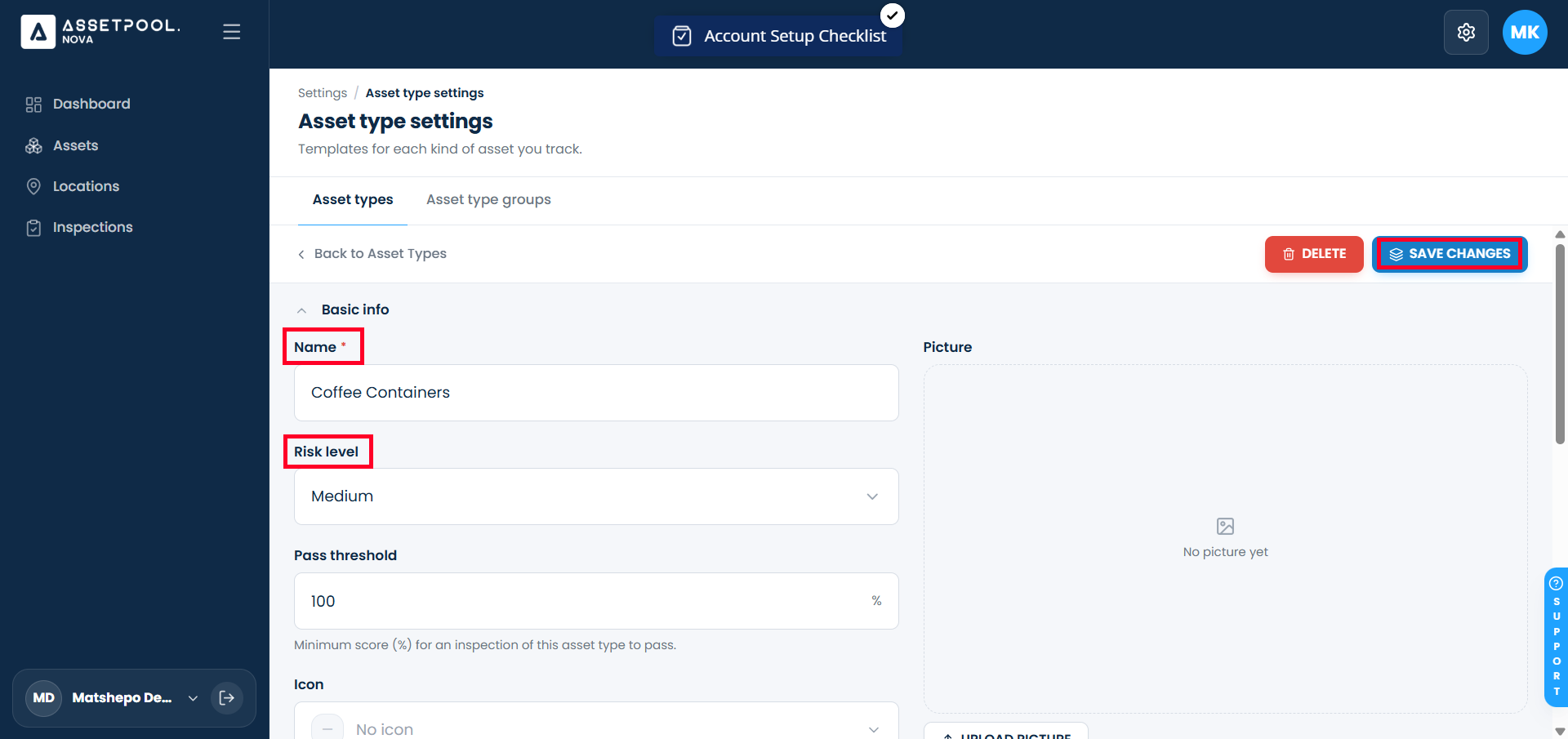
Navigate to Asset Type Settings > Asset Types tab.
Locate the Asset Type and click Edit.
Ensure required details are provided:
Description: Verify or populate the Description input.
Configure operational and compliance controls:
Risk Profile: Select the risk classification level (e.g., High, Medium, or Low).
Pass Threshold: Set the minimum required score percentage for inspections (e.g., 80%).
Category Icon & Image: Select an icon or upload a reference image file for the asset type.
Barcodeless Scanning: Enable the Barcodeless Scanning toggle if technicians can identify assets without physical barcodes.
Enforce Checklist Order: Enable Enforce Checklist Order to require inspectors to complete check items sequentially.
Add or Edit custom attribute fields:
Click + Add Attribute to configure required text, numeric, date, or selection inputs.
Click the existing attribute and make required changes.
Attach\Detach inspection checklists:
Scroll to the Checklists section and click the checklist toggle button to open the checklist library.
Search for and select the required checklist.
Confirm that the checklist appears in the attached checklists section.
Attach\Detach inspection checkpoints:
Scroll to the Checkpoints section and click the checkpoint toggle button to open the checkpoint library.
Search for and select the required checkpoint.
Confirm that the checkpoint appears in the attached checkpoint section.
Click Save Changes.
Verify that the saved configuration persists across all settings, attached checklist, attached checkpoints, custom attributes, and reference images.
Frequently Asked Questions & Troubleshooting
Why won't the system let me save my edits to an Asset Type?
The Asset Type editor requires a populated Description field before allowing changes to be saved. If the Save button is disabled or yields a validation error, ensure the description input is filled out.
What happens to existing asset records when new attributes are added to their Asset Type?
Existing equipment records assigned to that Asset Type will automatically display the new custom attribute fields on their detail and editing screens. The newly added attribute fields will remain blank until explicitly filled out on individual assets.
Was this article helpful?
That’s Great!
Thank you for your feedback
Sorry! We couldn't be helpful
Thank you for your feedback
Feedback sent
We appreciate your effort and will try to fix the article