Overview
Administrators and managers can quickly reverse the decommissioned state of an asset and restore it to active operational service. Recommissioning an asset removes the Decommissioned status badge and immediately restores the equipment to active asset directory lists and field inspection workflows.
Pre-requisites:
1. Asset:view and Asset:access-location-unassigned permissions.
Recommissioning an Asset
Navigate to Assets.
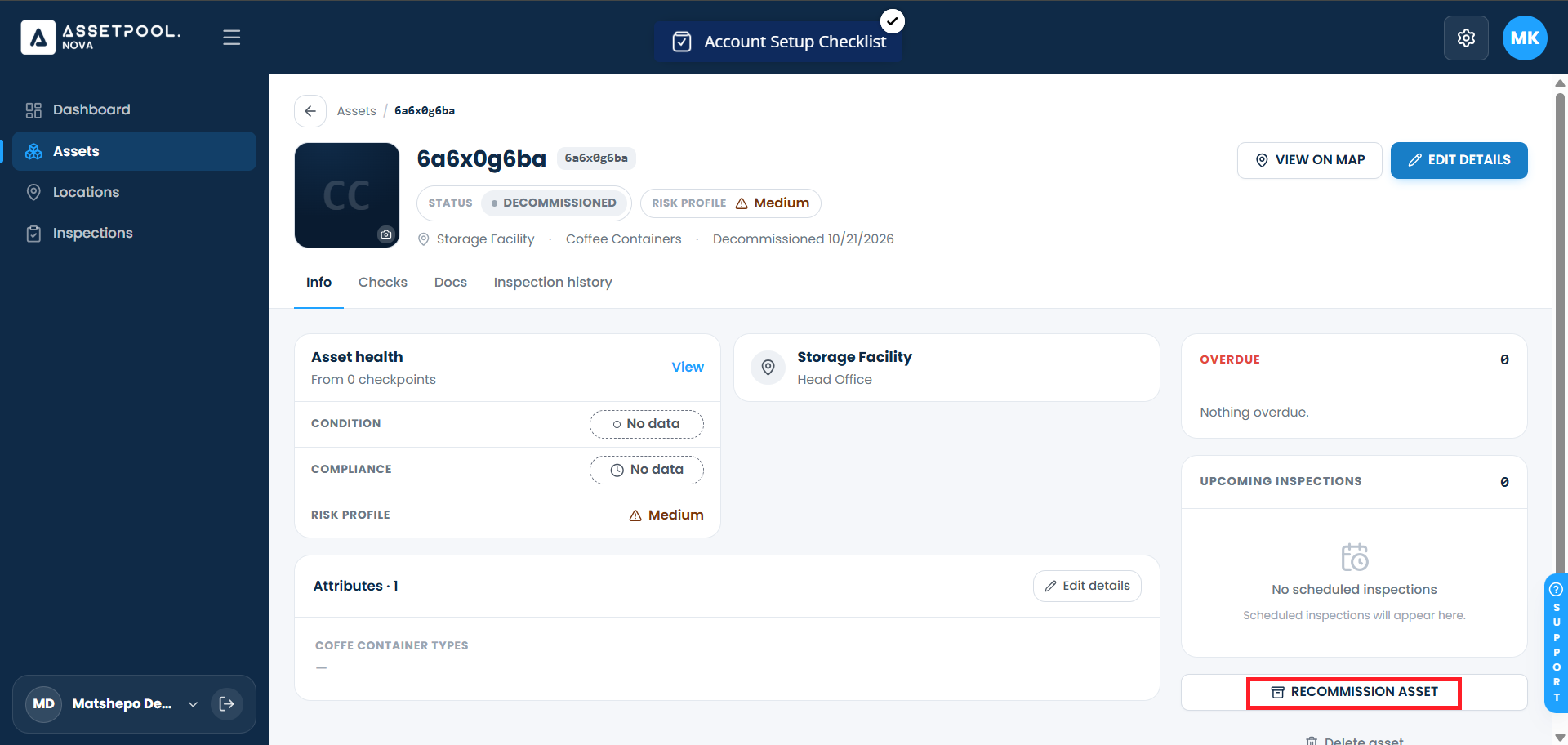
Use the status filter to view Decommissioned assets and select the target equipment row to open its Asset Detail page.
Confirm that the asset currently displays the Decommissioned status badge or pill indicator.
Click Recommission Asset.
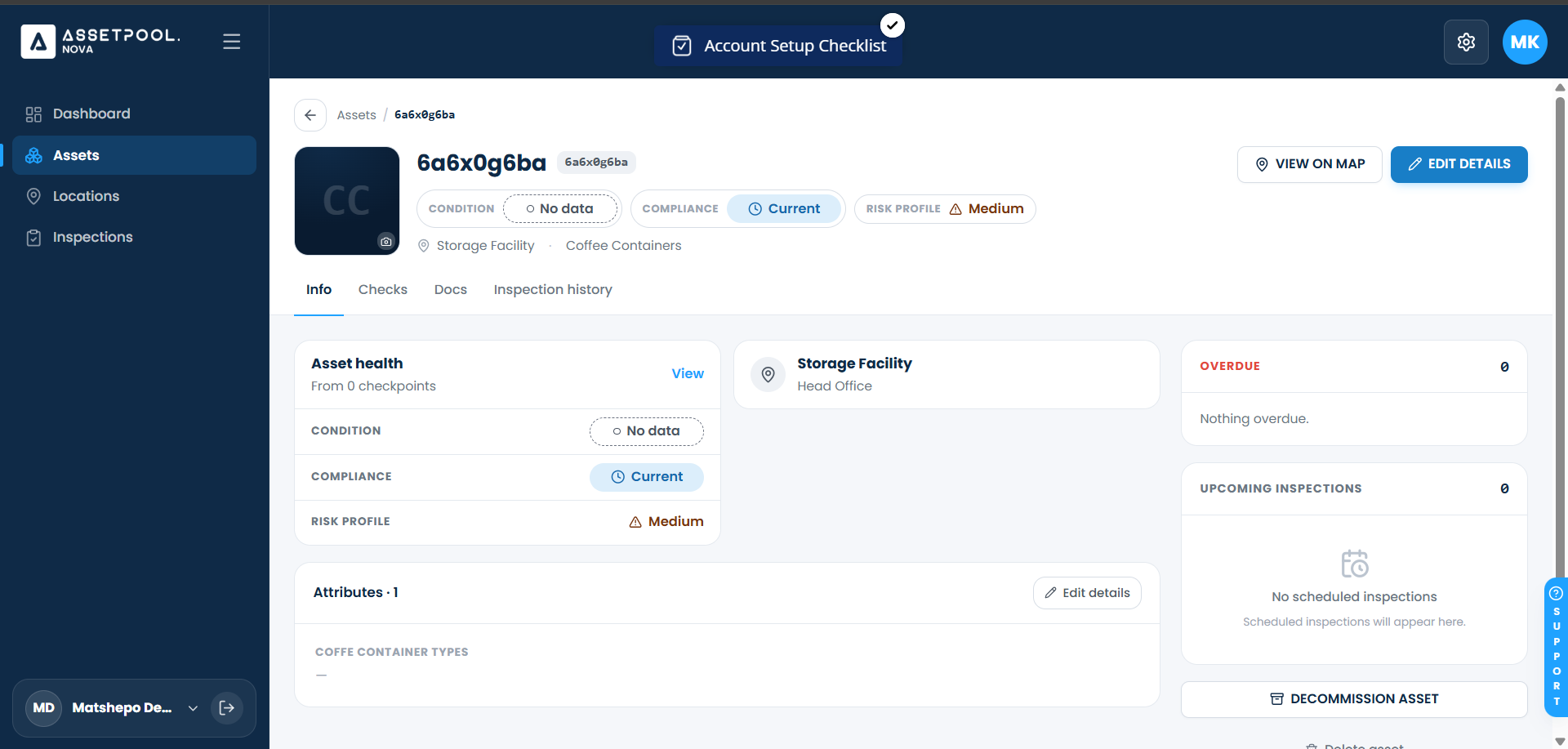
The system processes the status change immediately without requiring extra confirmation pop-ups.
Verify that the Decommissioned badge disappears, confirming the asset is now restored to Active status.
Frequently Asked Questions & Troubleshooting
What happens when an asset is recommissioned?
Recommissioning restores the asset to active operational status. It will instantly reappear in mobile inspection lists, active asset searches, and routine maintenance schedules.
Does recommissioning an asset restore its previous health score or inspection history?
The asset's complete historical inspection log remains fully intact. Health scores will update as new inspections and maintenance checks are conducted following its return to active service.
Who has permission to recommission an asset?
Recommissioning equipment is restricted to Organization Administrators and Asset Managers to prevent unauthorized field reactivations.
Was this article helpful?
That’s Great!
Thank you for your feedback
Sorry! We couldn't be helpful
Thank you for your feedback
Feedback sent
We appreciate your effort and will try to fix the article