Overview
The Add Asset Wizard guides field technicians and managers through a multi-step registration workflow to ensure new equipment is properly categorized, identified, and assigned. Completing all six steps of the wizard captures comprehensive asset metadata—including asset type, unique barcode, primary details, media attachments, and site locations—with a final review step to confirm accuracy before saving to the directory.
Completing the Full Add Asset Registration Wizard
Navigate to Assets and click + Add Asset to open the wizard.
Step 1 — Asset Type: Search for and select the target Asset Type category, then click Next.
Step 2 — Barcode / Identifiers: Scan or type the unique physical Barcode value or click Skip to proceed.
Step 3 — Details: Enter the primary Asset Name and operational Description notes, then click Next.
Step 4 — Photos & Media: Upload reference photo media or click Skip to proceed.
Step 5 — Location Assignment: Search for and select the assigned Location or click Skip to proceed.
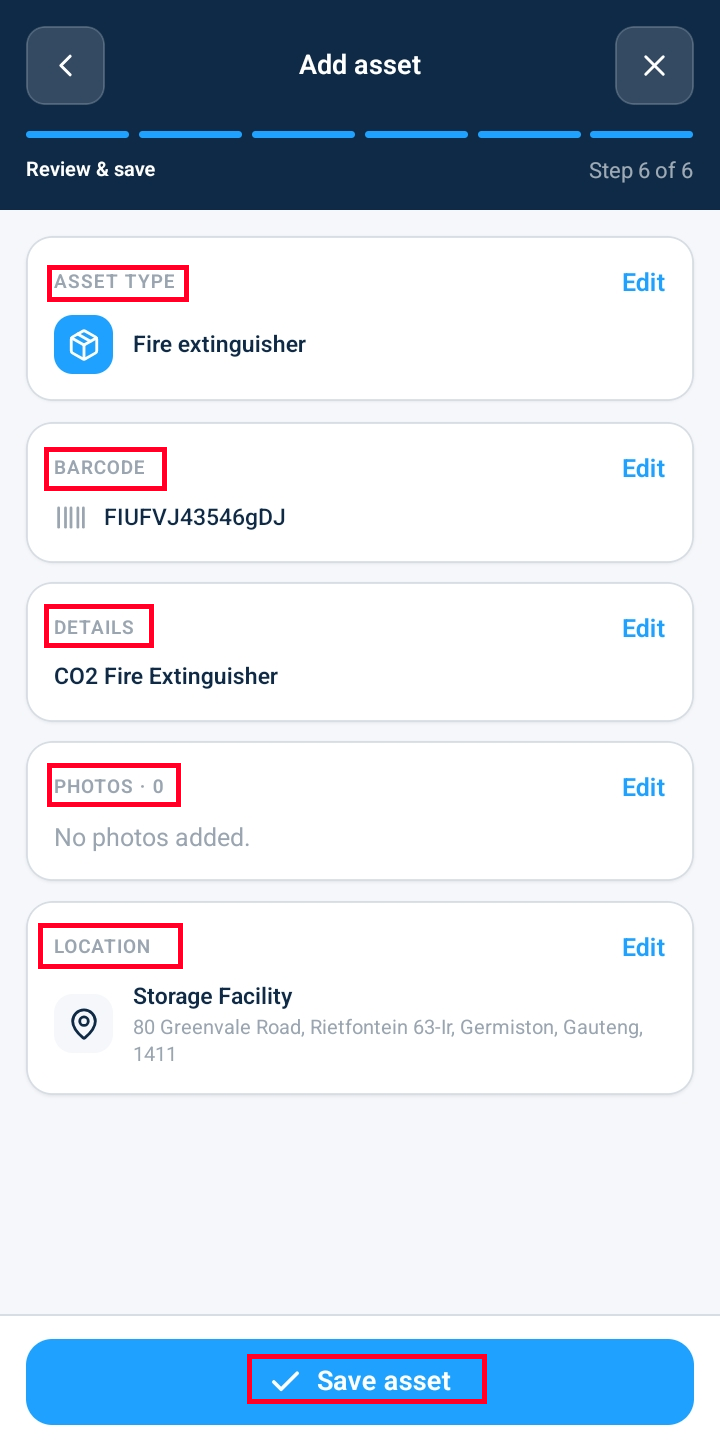
Step 6 — Review & Summary: Review the six summary sections to confirm all captured values before final submission:
Asset Type Summary: Displays selected equipment category.
Barcode Summary: Displays scanned or entered barcode label.
Asset Details Summary: Displays name and descriptive notes.
Photos Section: Displays attached reference media thumbnails (or empty state if skipped).
Location Summary: Displays the assigned physical site name (or empty state if skipped).
Click Save Asset.
Upon submission, the wizard closes and returns to the main Assets Directory. Use the search bar to find and verify the newly listed equipment record.
Frequently Asked Questions & Troubleshooting
What happens if I skip uploading photos during Step 4?
Photos are optional during initial wizard registration. Skipping photo capture allows you to proceed directly to location assignment, and the Review summary will display an empty state for the Photos section. Photos can always be attached later via the asset's detail profile.
Can I go back and modify a section before saving in Step 6?
Yes. On the Step 6 Review screen, click the Edit pencil icon next to any summary section (such as Location or Details) to navigate directly back to that wizard step and update your entry without losing progress.
Why does the system require both a Barcode and an Asset Name?
Asset Name provides a human-readable title for directory searches and reporting, while the Barcode provides a unique physical hardware identifier that mobile devices can scan directly in the field to launch inspections.
Was this article helpful?
That’s Great!
Thank you for your feedback
Sorry! We couldn't be helpful
Thank you for your feedback
Feedback sent
We appreciate your effort and will try to fix the article