Overview
This end-to-end workflow guides technicians and administrators through assigning an asset to a location, conducting a scored inspection, verifying offline data sync, and reviewing inspection records across the dashboard and asset history.
Performing an Asset Inspection
Navigate to Assets and locate your target asset.
Open the asset's detail view and tap Start Inspection.
Select the applicable Checklist assigned to the asset type.
Complete all checks:
Select Pass / Fail / PWC / NA on the scored checkpoint item.
Add the inspector comment in the notes field (optional).
Add the inspector evidence by taking photos (optional).
Repeat above steps until all checks are done.
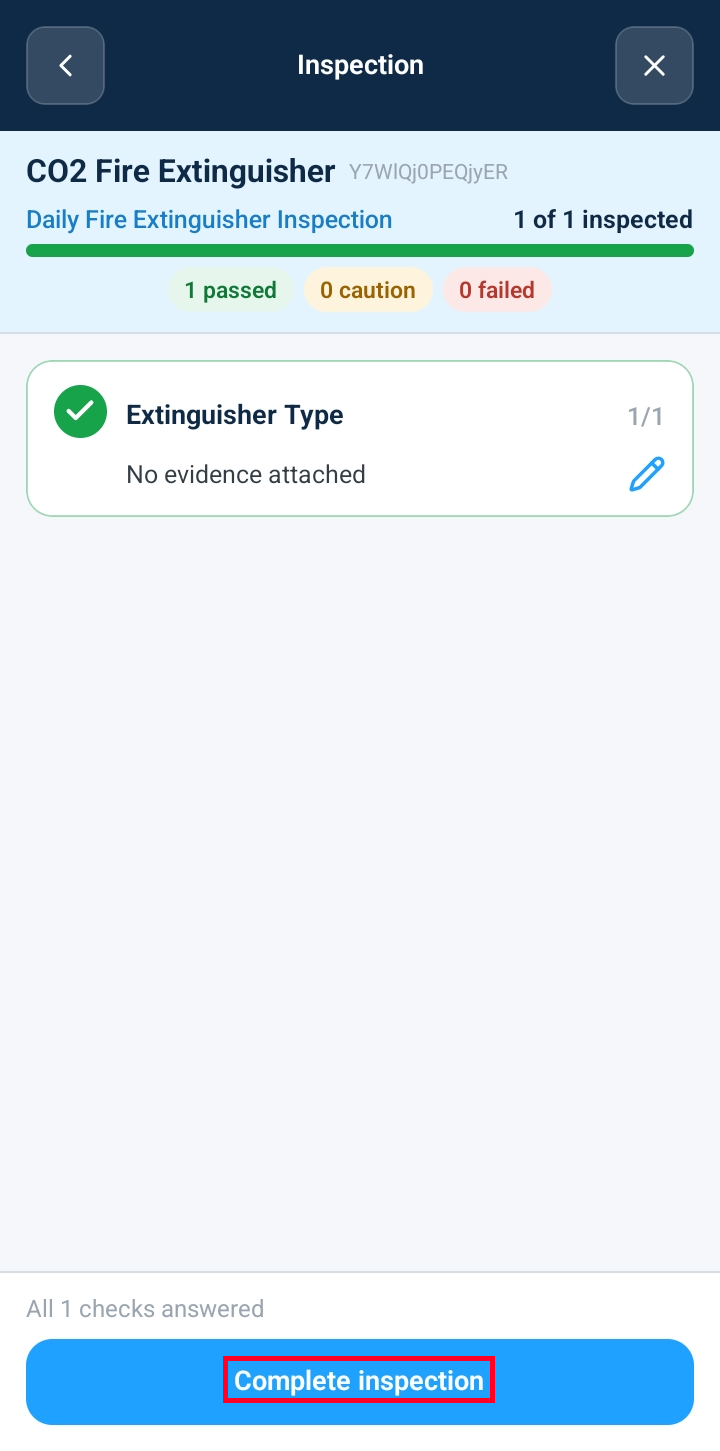
Review all the completed checkpoints and tap Complete Inspection to submit.
Upon submission, you will automatically return to the main Assets list.
Verifying Dashboard Metrics and System Synchronization
After completing an inspection, you can verify that data has propagated across your workspace metrics:
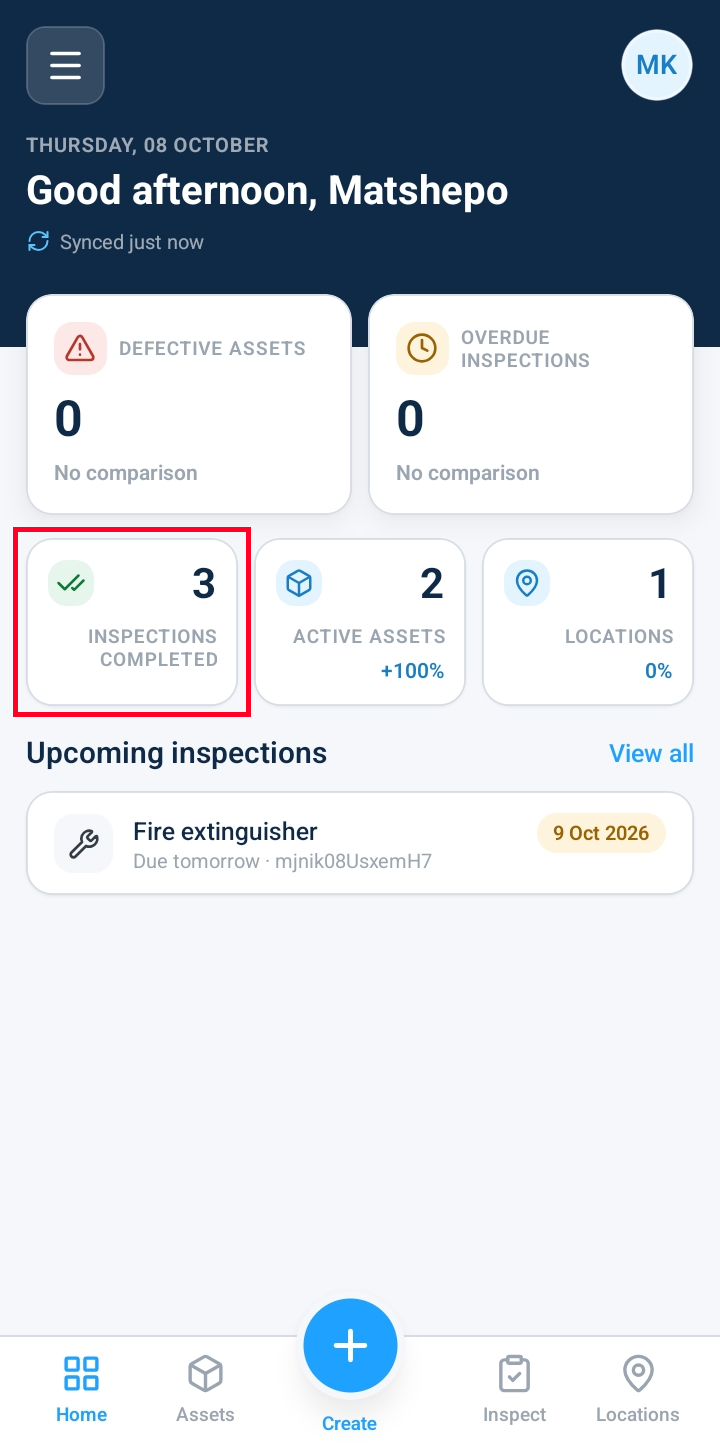
Dashboard Analytics: Navigate to Home / Dashboard and refresh the screen. The Inspections Completed widget will update to reflect the newly submitted inspection count.
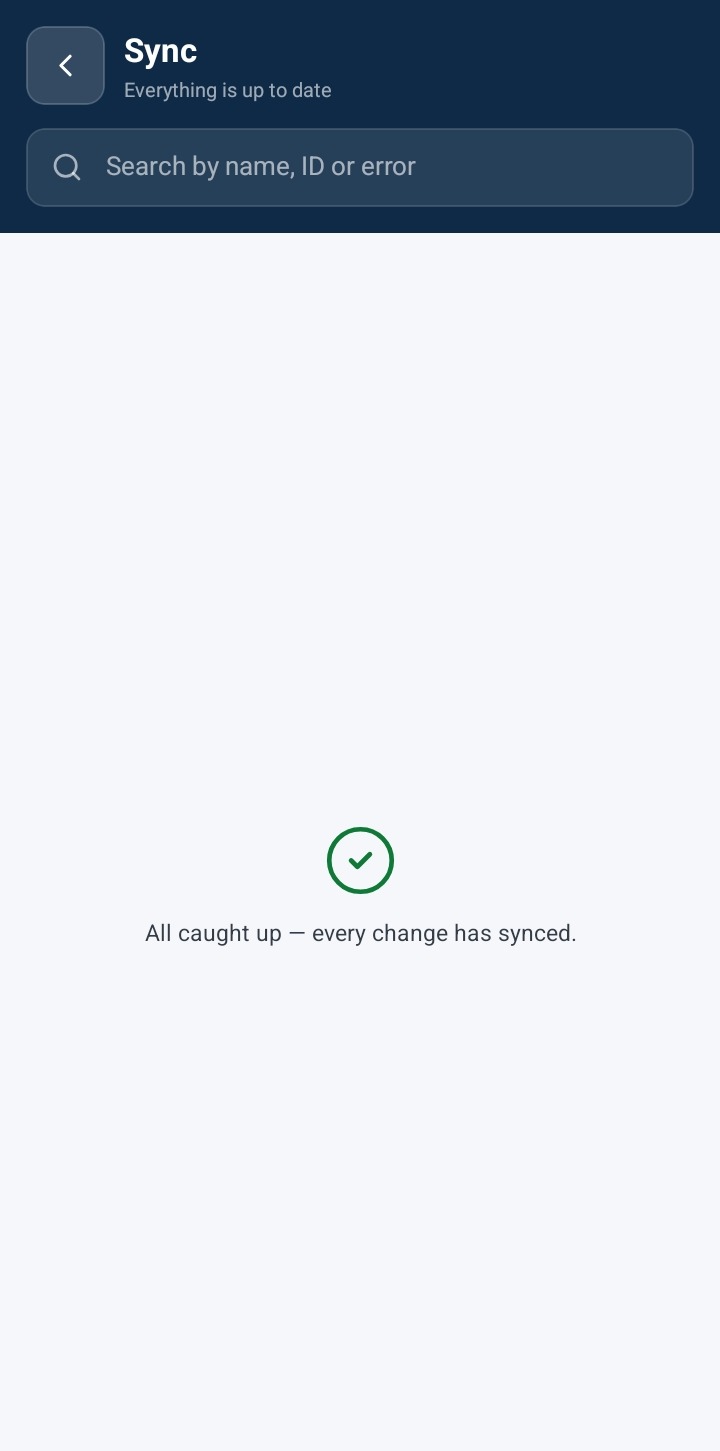
Sync Status: Open the side menu drawer and select Sync Module. If working online or after connectivity is restored, the sync queue will display an Empty Queue / All Synced state, confirming that all local inspection records have successfully uploaded to the server.
Reviewing Asset Inspection History and Check Records
To confirm that an inspection score has been recorded against a specific physical asset:
Navigate to Assets and select the inspected equipment record.
Select the Checks (or Inspection History) tab.
Scroll down to review the inspection breakdown:
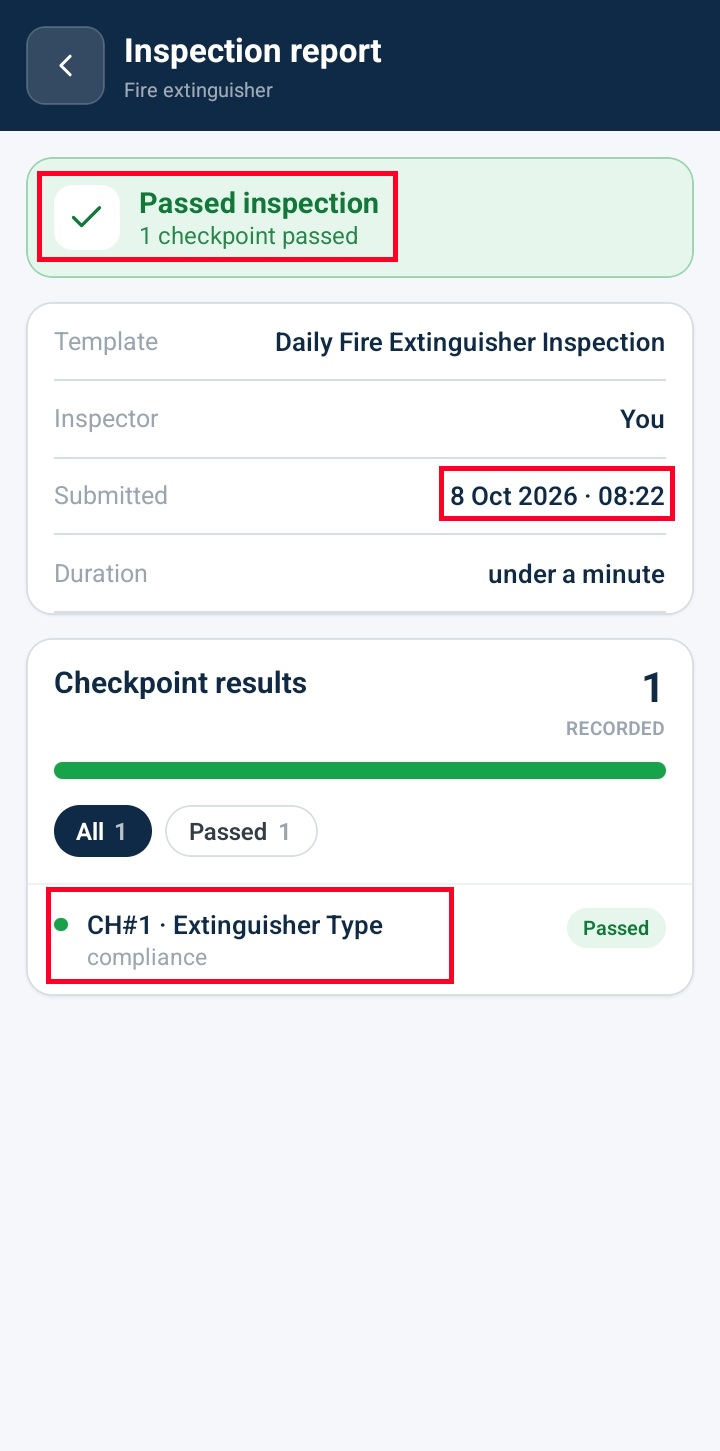
Checkpoint Scores: View individual checkpoint rows displaying the green Passed status tile along with inspector comments.
Inspection History Summary: Verify the Last Completed timestamp and completed checklist logs attached to the asset's permanent record.
Frequently Asked Questions & Troubleshooting
Why hasn't my completed inspection updated the Dashboard counter immediately?
Dashboard statistics aggregate periodically. If the "Inspections Completed" count does not update instantly, refresh the Home dashboard or allow up to 30 seconds for background metrics sync to finalize.
What happens if I complete an inspection while offline?
Inspection entries completed without an active internet connection are stored safely on your mobile device. Open the Sync Module from the navigation drawer once reconnected to monitor pending uploads until the queue clears.
Are comments required when marking a checkpoint as Passed?
Comment requirements depend on your checklist rules. If a checkpoint is configured to mandate inspector feedback, the system will prevent submission until notes are provided.
Was this article helpful?
That’s Great!
Thank you for your feedback
Sorry! We couldn't be helpful
Thank you for your feedback
Feedback sent
We appreciate your effort and will try to fix the article