Overview
Field technicians can download location assignment data to complete multiple asset inspections while operating completely offline. When network connectivity is restored and offline mode is exited, the application automatically uploads pending inspection records, updates workspace analytics dashboards, and logs entries in each asset's permanent history.
Completing Offline Inspections and Syncing Work
1.Download Location Work Data: Requires active internet connection.
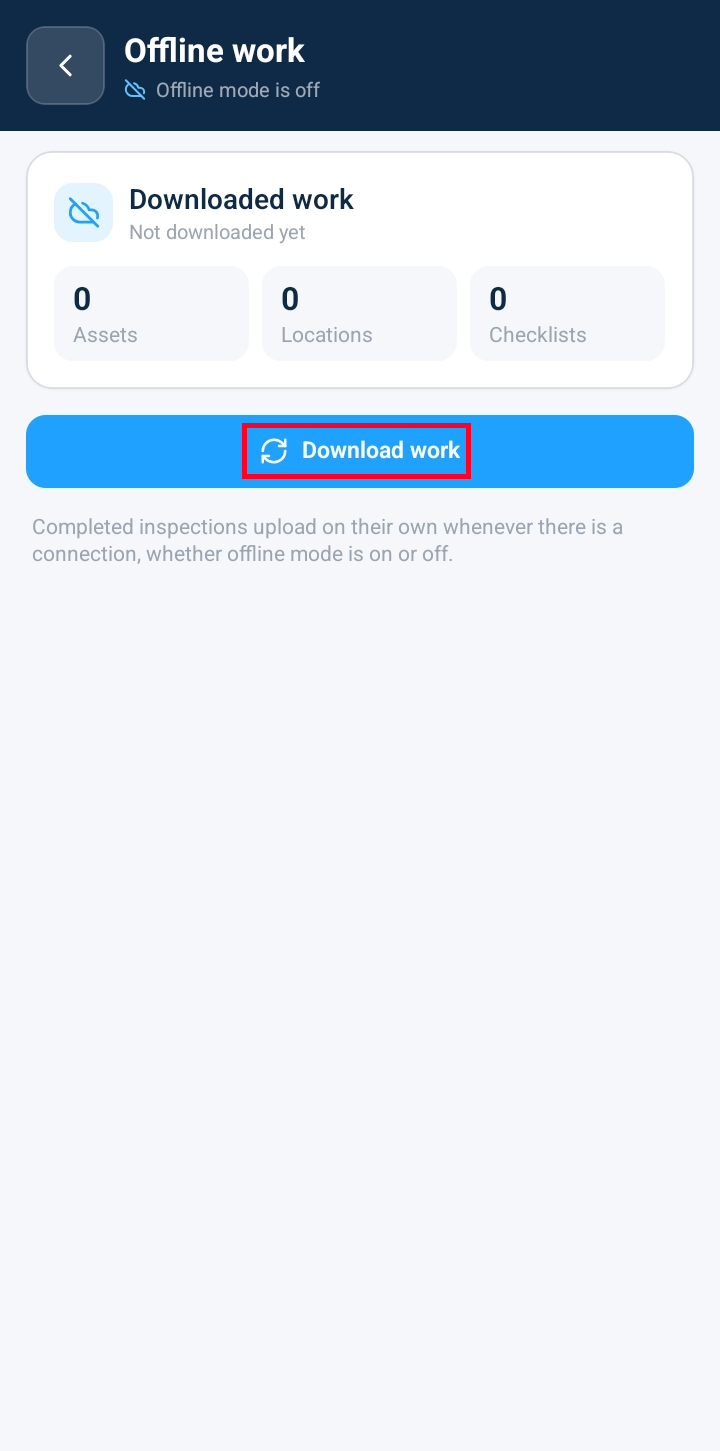
Open the navigation drawer from the primary dashboard and select Offline Work. Choose your designated location/site to download all attached asset records, inspection checklists, and checkpoint templates to your device.
2.Perform Field Inspections Offline:
While disconnected or operating in offline mode, open the downloaded Offline Work screen. Tap on each assigned asset row to conduct and complete its required inspection checklist. Repeat for all assigned assets in your offline list.
3.Restore Connectivity & Disable Offline Mode:
Once internet connection is restored, open the navigation menu and toggle Disable Offline Mode (or exit Offline Mode). This action triggers the automatic upload sequence for all pending offline inspections.
4.Verify Dashboard Metrics & Sync Queue:
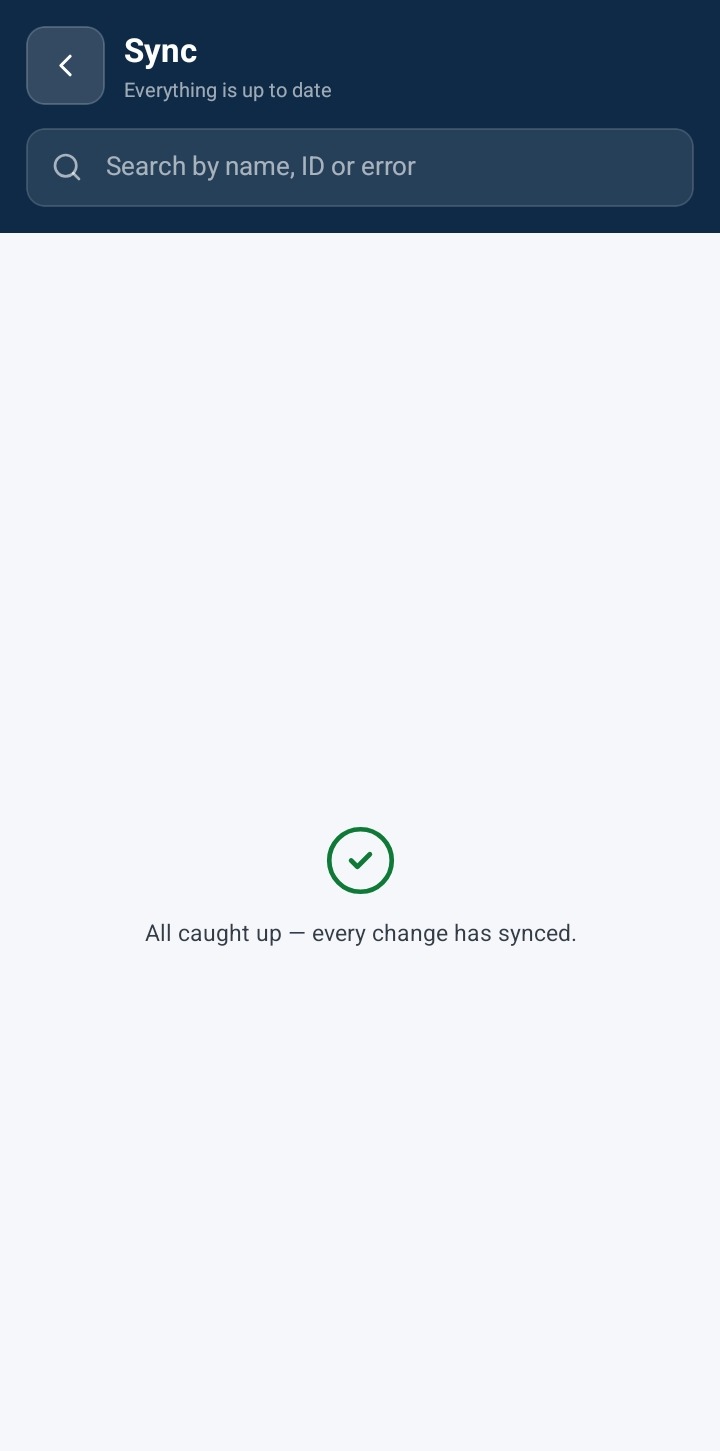
Navigate to the Home Dashboard and refresh the screen. Verify that the Inspections Completed widget reflects your newly uploaded inspection total. Open the Sync Module from the menu drawer to confirm that the pending queue is clear (displaying an All Synced state).
5.Verify Asset Inspection Logs:
Navigate to Assets and open each inspected equipment record. Select the Checks (or Inspection History) tab and scroll to confirm that a Last Completed entry has been recorded.
Frequently Asked Questions & Troubleshooting
Can I select more than one Location offline?
Yes, you can select multiple Locations for offline mode.
Are assets without Locations visible in offline mode?
Assets that do not belong to a Location can be inspected in offline mode.
Does reconnecting to Wi-Fi/Cellular automatically upload my offline inspections?
Restoring internet connectivity alone does not immediately trigger sync if the app is locked in offline mode. You must explicitly toggle Disable Offline Mode from the navigation drawer to launch the background sync and refresh your workspace.
What happens to my inspection data if the device turns off while offline?
All completed inspection entries, checklist scores, and comments are saved locally to your device's persistent storage as soon as you finish each inspection step. Data remains safe until you reconnect and sync.
Why is my dashboard counter not updating after disabling offline mode?
Large batches of offline inspection records may take up to 1–2 minutes to process and reflect across system reporting. Refresh the Home screen or check the Sync Module queue to verify processing status.
Was this article helpful?
That’s Great!
Thank you for your feedback
Sorry! We couldn't be helpful
Thank you for your feedback
Feedback sent
We appreciate your effort and will try to fix the article