Overview
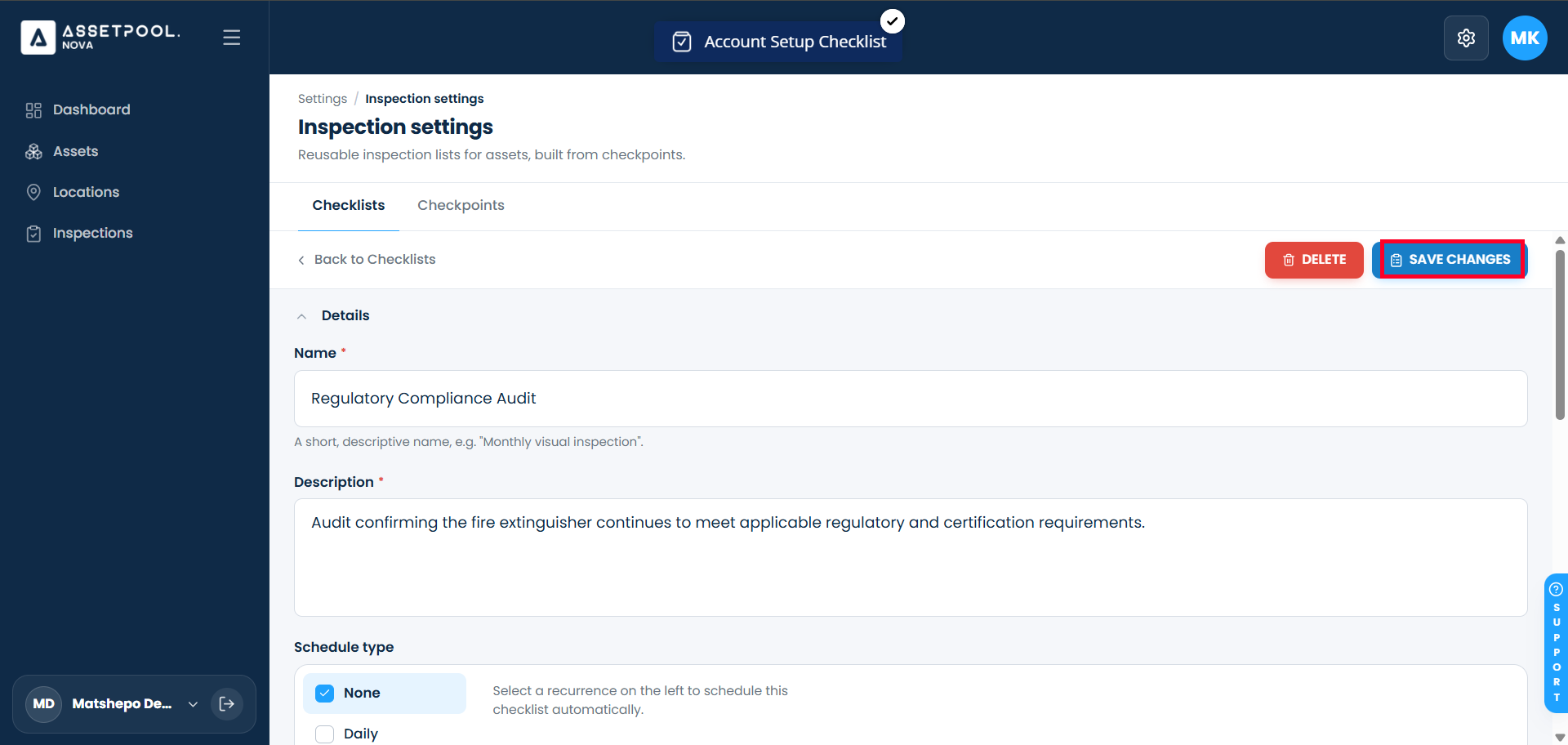
Administrators can update an existing checklist’s name, description, or assigned checkpoints at any time. Saving your changes immediately updates the checklist template in the main management table and applies the new details to future inspection assignments.
Pre-requisite:
1. Checklists:create and Checklists:view permissions.
Editing an Existing Checklist
Navigate to Settings >Inspection Settings > Checklists tab.
Locate the checklist you wish to modify in the table and click Edit (or select the checklist to open its details).
Update the necessary fields:
Checklist Name: Enter the new title for the checklist template.
Description: Update the operational instructions or scope.
Checkpoints: Add / Remove checkpoints.
Click Save at the top or bottom of the form.
Return to the primary Checklists table to verify that the updated checklist name is visible in the list.
Frequently Asked Questions & Troubleshooting
What happens to ongoing inspections when I edit a checklist?
Updating a checklist template changes the parameters for future inspections. Any inspection jobs that were already completed or generated prior to the edit will retain their original checklist details.
How quickly do updated checklist names appear in the list?
Changes are processed immediately upon clicking Save. The updated name will replace the old title in the main table right away.
Why are my edits taking a few seconds to update after clicking Save?
Depending on system activity, processing edits may take up to a few seconds. If the updated row doesn't reflect the new name immediately, allow up to 30 seconds for the write request to finish, or refresh your browser.
Was this article helpful?
That’s Great!
Thank you for your feedback
Sorry! We couldn't be helpful
Thank you for your feedback
Feedback sent
We appreciate your effort and will try to fix the article