Overview
Administrators can create complete, multi-step inspection checklists by importing an Excel or CSV file containing individual checkpoints. The system automatically preloads each checkpoint into the checklist builder, making it easy to create structured inspection routines in bulk.
Pre-requisite:
1. Checklists:create and Checklists:view permissions.
Bulk Importing Checkpoints to Create a Checklist
Navigate to Settings > Inspection Settings > Checklists tab.
Click + Create Checklist.
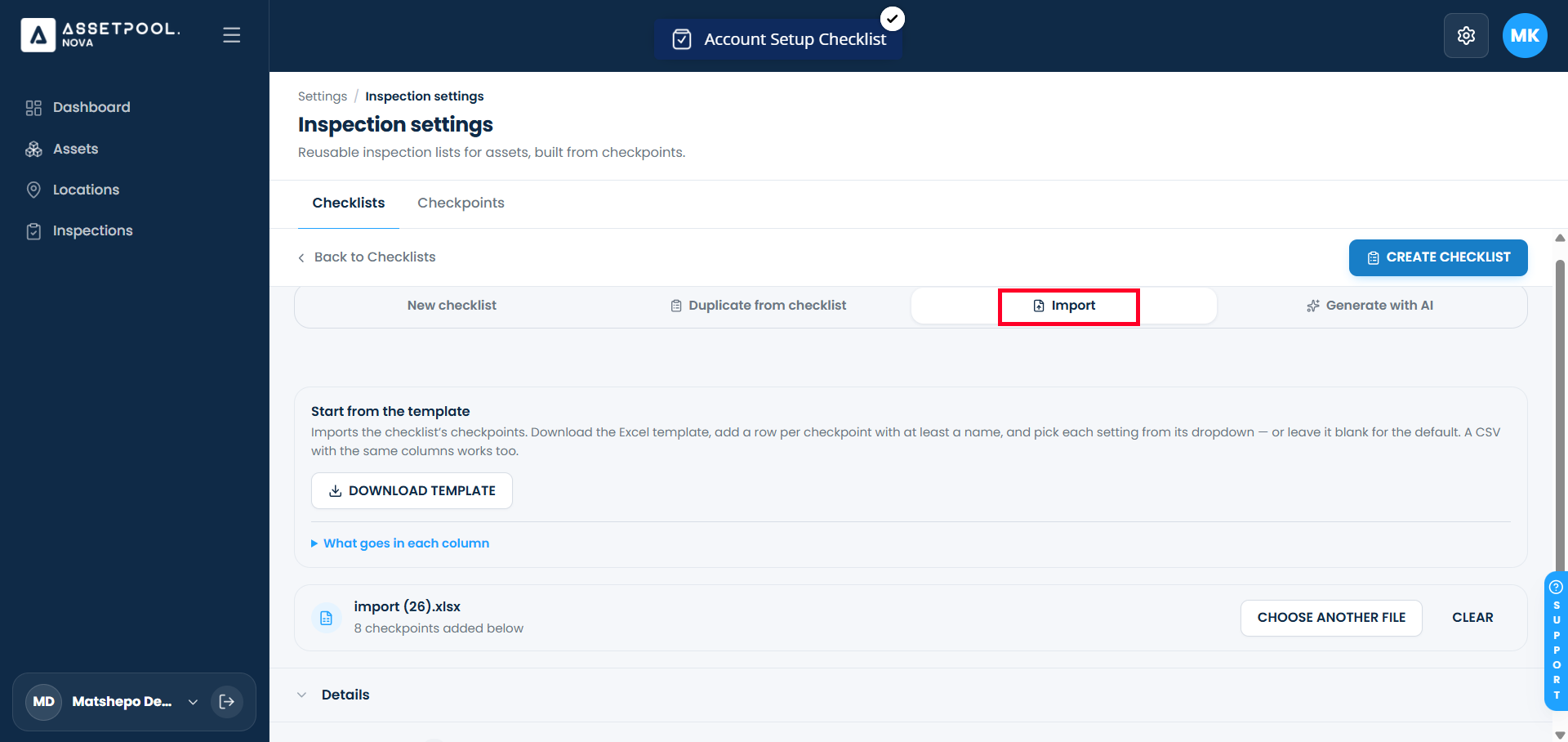
Select Import.
Upload your prepared Excel or CSV file containing the list of checkpoints.
Review the imported items in the pre-load preview to verify that all rows were detected (e.g., verifying that both checkpoint items appear in the checklist builder list).
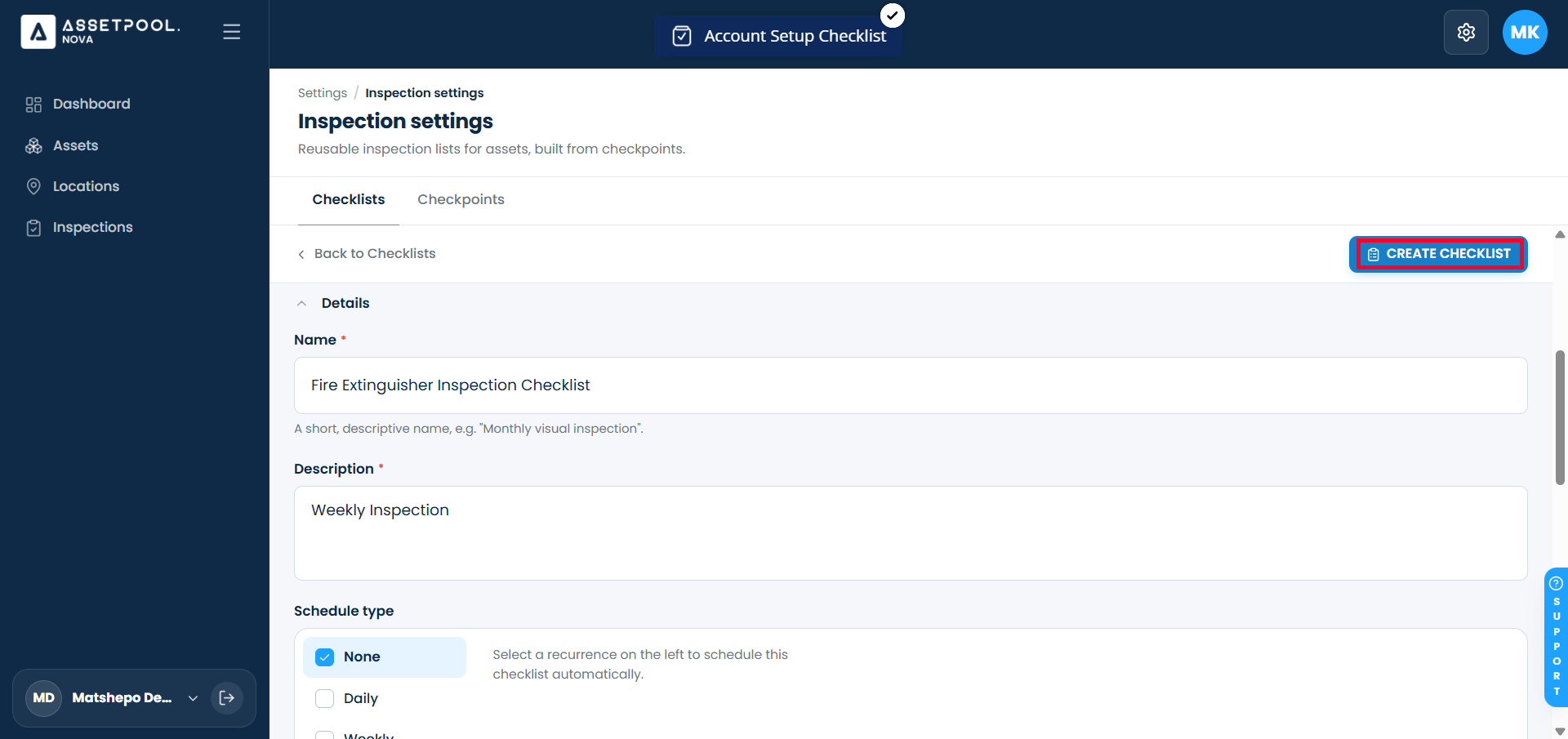
Complete the mandatory checklist details:
Checklist Name: Enter a descriptive title (e.g., HVAC Preventative Maintenance Checklist).
Description: Enter the operational instructions for technicians performing this checklist.
Click Create Checklist.
Return to the primary Checklists table to verify that your new template and its attached checkpoints are active.
Frequently Asked Questions & Troubleshooting
What format should the CSV file follow?
The CSV file uses the standard checkpoint layout header (Name,Description,Type,Required,InstantFail,EnforceComments,ImageRequired,ResponseType). Only the Name column is mandatory; all other blank columns will inherit default system settings.
What happens to the individual checkpoints listed in the CSV?
Importing a CSV into the checklist generator creates each row as an active checkpoint within your library while simultaneously linking them directly to your new checklist template.
Why am I unable to save after uploading my CSV file?
The bulk import action populates the checklist items, but you must still provide a Checklist Name and Description in the form before the Save button becomes active.
What should I do if the checklist does not show up immediately in the table?
Processing bulk items and linking multiple checkpoints to a single checklist template may take a few seconds. If the page does not automatically update, allow up to 30 seconds for backend processing to finish, or refresh your browser view.
Was this article helpful?
That’s Great!
Thank you for your feedback
Sorry! We couldn't be helpful
Thank you for your feedback
Feedback sent
We appreciate your effort and will try to fix the article