Overview
Administrators, managers, and technicians can upload supporting documentation—such as operating manuals, compliance certificates, warranty records, or PDF schematics—directly to an asset's profile. Attaching files under the Documents tab centralizes critical equipment records, updates document counters, and makes files immediately accessible to field personnel.
Pre-requisites:
1. Asset:view and Asset:access-location-unassigned permissions.
Uploading Supporting Documents to an Asset
Navigate to Assets.
Click the target asset row to open its Asset Detail page.
Click the Docs sub-tab from the asset navigation bar.
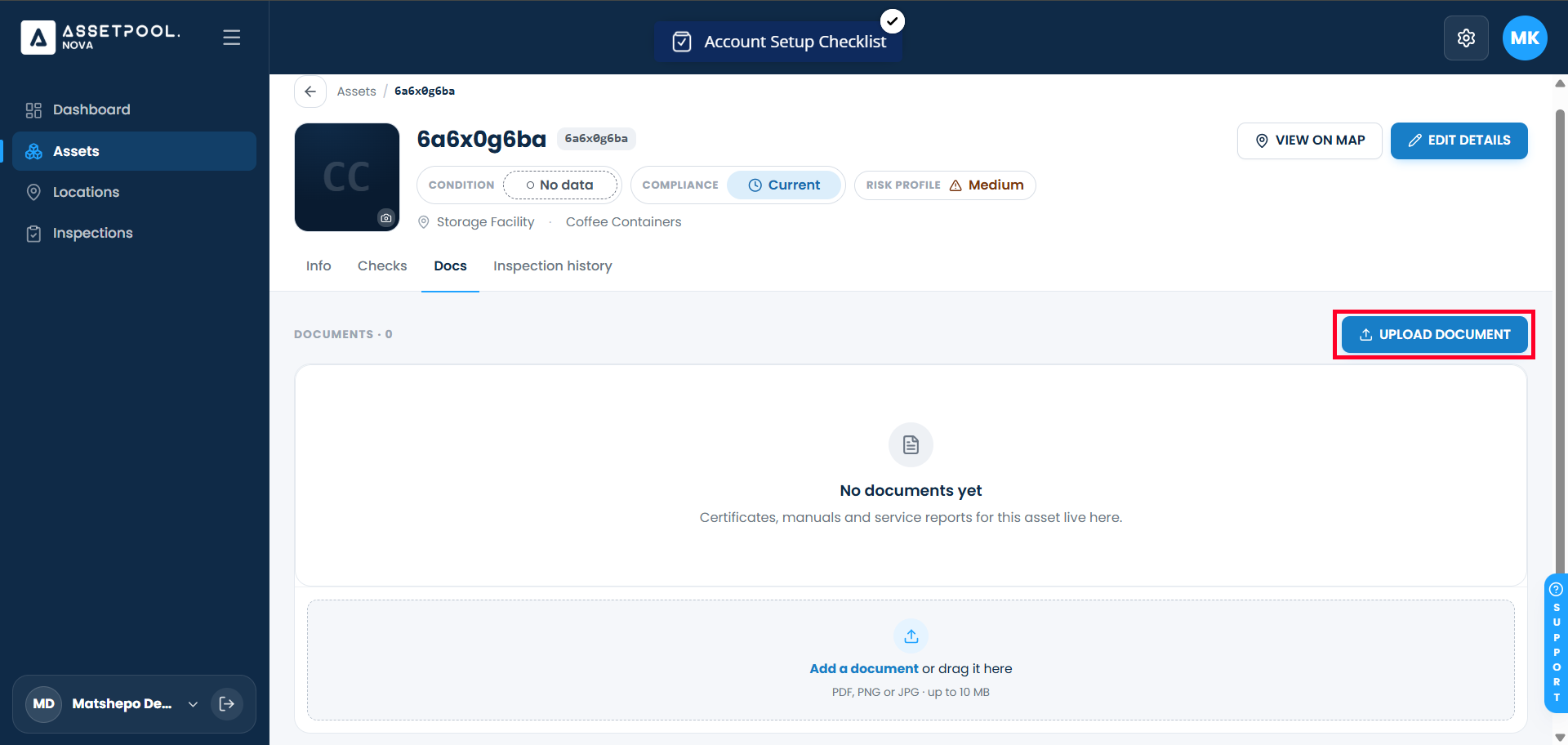
If no files have been uploaded previously, the tab will display an empty state (No documents uploaded).
Click Upload Document (or drag and drop a file into the upload zone).
Select your target document file (e.g., example-pdf-file.pdf) from your computer or mobile device.
Wait for the upload progress bar to complete.
Verify that:
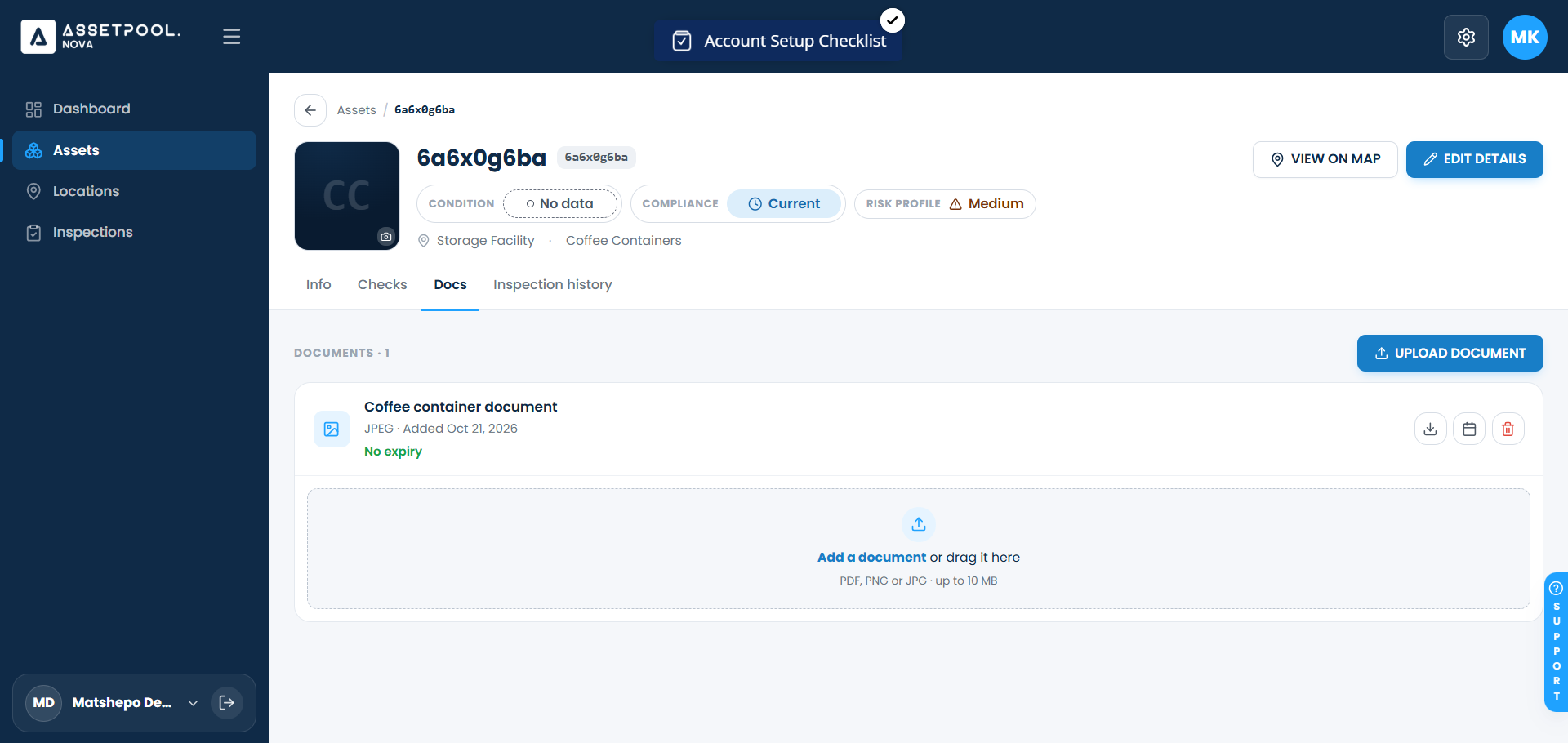
The Documents Table appears, displaying the file name, file type (e.g., PDF), and upload date.
The empty state message clears.
The tab header updates its count indicator (e.g., Documents · 1).
Frequently Asked Questions & Troubleshooting
What file formats can I upload to the Documents tab?
The Documents tab supports standard document formats including PDF files, Microsoft Word documents (.doc/.docx), text files (.txt), and common image formats.
Is there a file size limit for uploaded asset documents?
Yes. Standard file uploads are typically capped at 25MB per document to ensure optimal mobile sync and loading performance in the field.
Can field technicians view uploaded documents while offline?
Documents uploaded to an asset are included when field technicians download location work packages for offline use, allowing them to reference manuals and schematics without active internet connectivity.
How do I delete or replace an uploaded document?
Navigate to the asset's Documents tab, locate the file row in the Documents Table, click the Options (⋮) menu or trash icon, and select Delete Document.
Was this article helpful?
That’s Great!
Thank you for your feedback
Sorry! We couldn't be helpful
Thank you for your feedback
Feedback sent
We appreciate your effort and will try to fix the article