Overview
Users with access to multiple accounts can switch their active organization directly from the side navigation drawer's Workspace Switcher. Switching organizations immediately re-scopes the application dashboard, asset views, and navigation menus to the selected organization while updating your active user role (e.g., transitioning from an Owner in one workspace to a Technician in another).
Switching Organizations
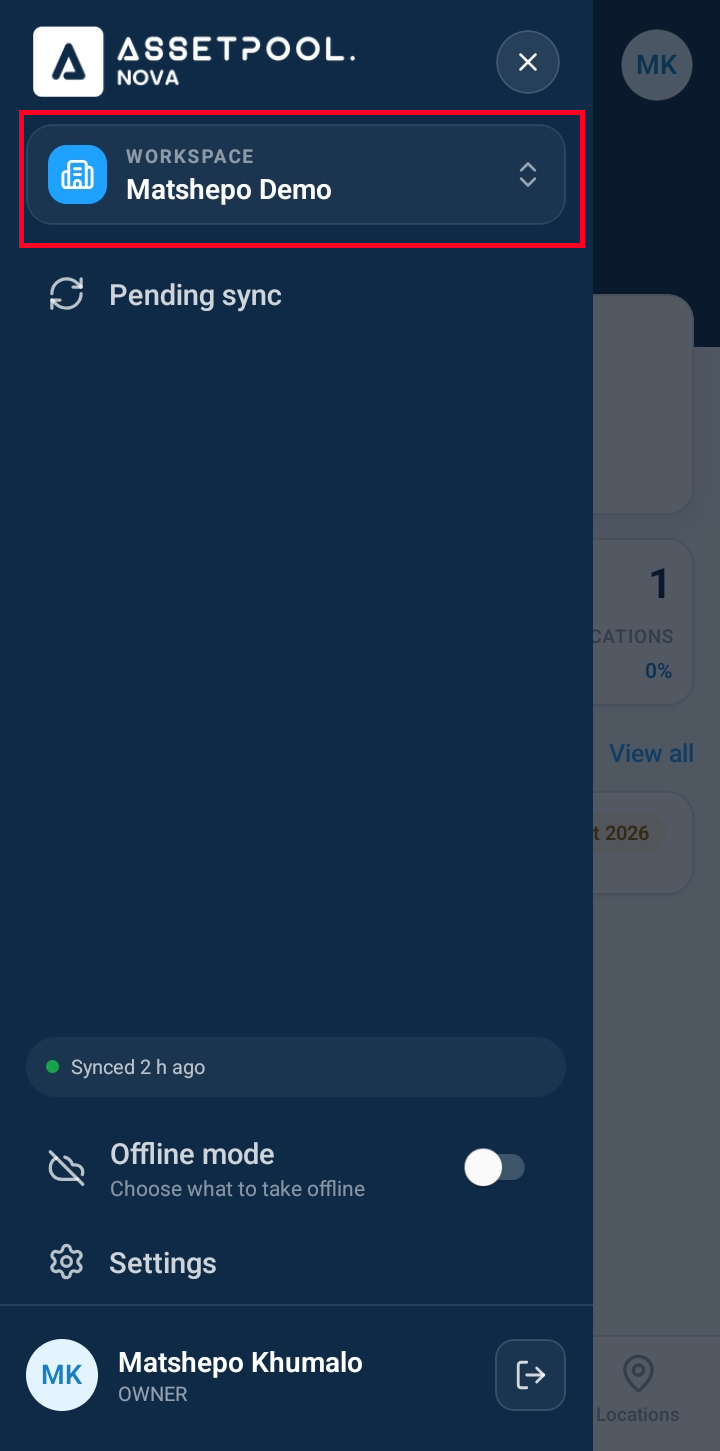
Tap the hamburger menu icon to open the main Navigation Drawer.
Observe your currently active organization details in the drawer header/footer:
Active Organization Name: Displays the company profile currently in view.
Assigned Username and Role Badge: Displays your specific user role for that workspace.
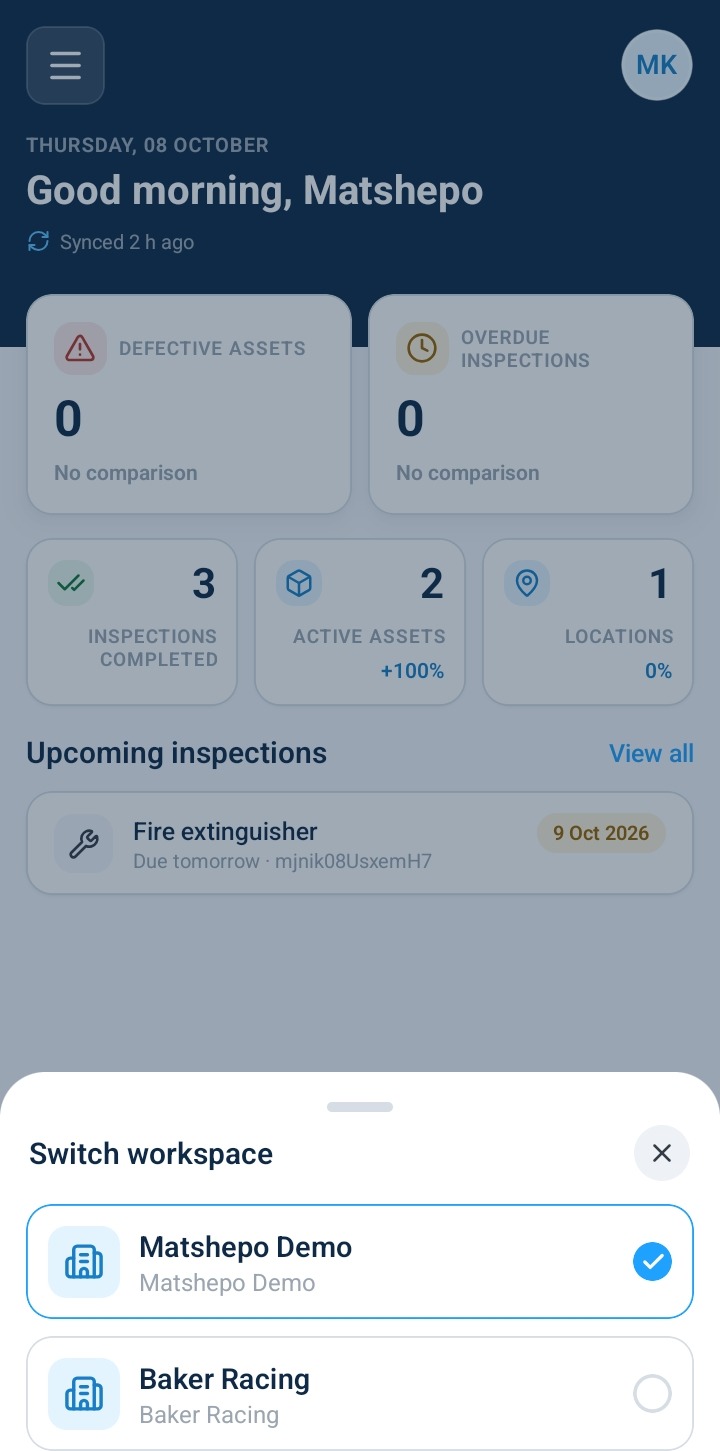
Tap the Workspace / Tenant Switcher dropdown menu within the drawer.
Review the available workspaces listed in the selector:
Your primary owned organization.
Any secondary organizations.
Select the target organization you wish to switch to.
The application automatically re-scopes your active session to the new workspace dashboard.
Open the Navigation Drawer again to confirm the transition:
Verify that the active organization name has been updated.
Confirm that your User Role Badge reflects your assigned role within the newly selected organization (e.g., Technician).
Frequently Asked Questions & Troubleshooting
Why does my user role change when I switch organizations?
User roles and security permissions are managed independently per workspace. An account owner in Organization A may be invited as a Technician or Inspector in Organization B to perform specific field audits.
Does switching active organizations log me out of my current session?
No. Switching organizations re-scopes your active dashboard without requiring you to enter your password again, providing smooth context switching between parent and sub-entity operations.
Why don't I see an invited organization in the workspace switcher list?
Ensure that the invitation sent to your email address has been accepted. If you still do not see the invited organization, ask the site administrator to verify that your email address was assigned to the workspace tenant.
Was this article helpful?
That’s Great!
Thank you for your feedback
Sorry! We couldn't be helpful
Thank you for your feedback
Feedback sent
We appreciate your effort and will try to fix the article