Overview
Administrators with billing permission can upgrade their organization's subscription plan at any time to unlock additional features, higher usage limits, and enhanced capabilities. Selecting an upgrade redirects you seamlessly to our secure checkout provider, Chargebee, to complete your payment details.
Pre-requisites:
1. Subscriptions:billing permission.
Upgrading Your Plan
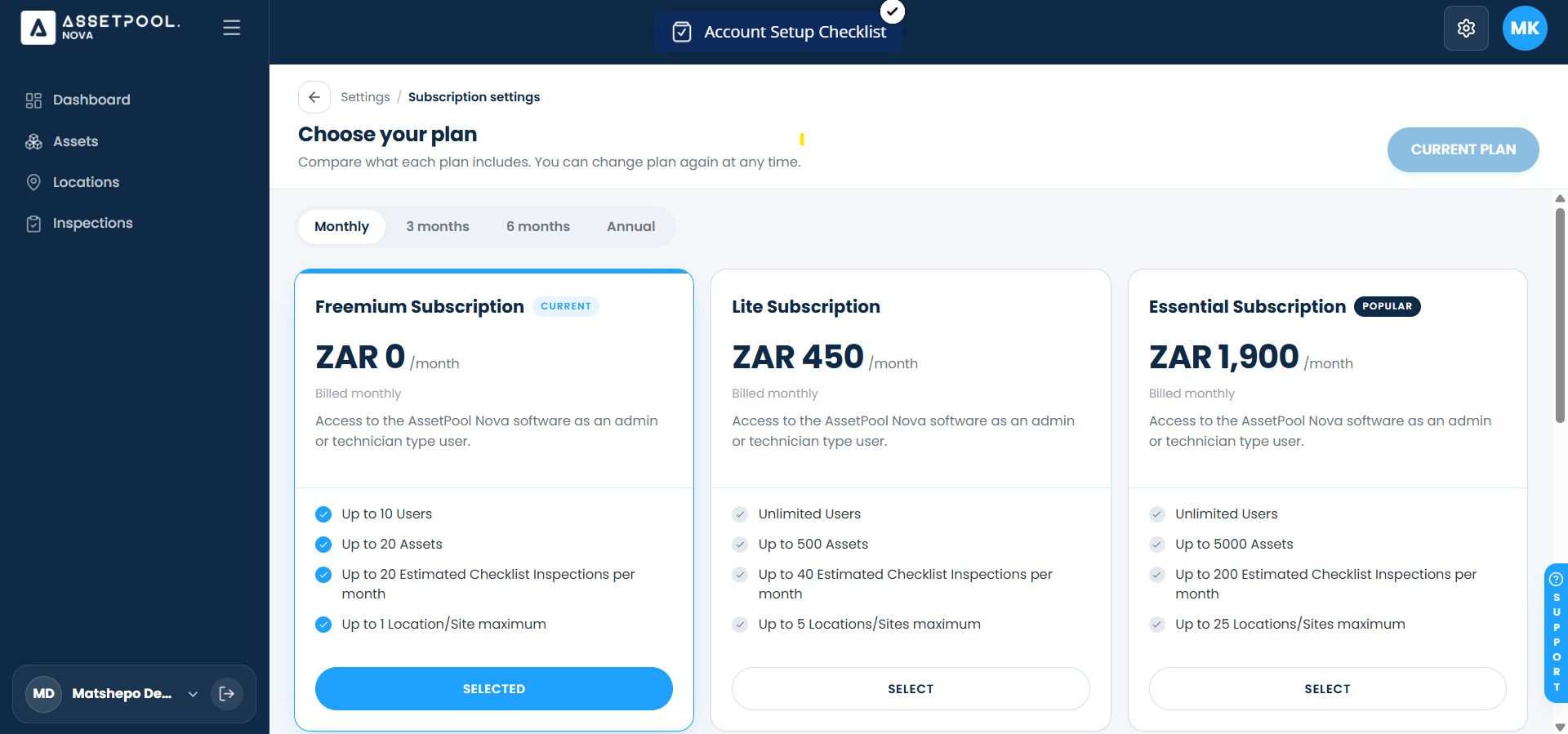
Navigate to Settings > Subscriptions Settings.
Browse the available subscription tiers in the plan catalogue.
Select an eligible higher-tier plan and click Upgrade Plan.
You will be automatically redirected to the secure Chargebee Checkout window.
Review your plan summary, enter or confirm your payment information, and complete the order.
Frequently Asked Questions & Troubleshooting
What happens when I click the Upgrade button?
Clicking upgrade initiates a secure checkout session with Chargebee, our payment partner. A checkout modal or window will launch so you can review billing details before any charges are made.
Will my subscription upgrade take effect immediately?
Yes. Once payment is processed through the Chargebee checkout screen, your organization's account is updated immediately with access to the new plan features.
Can I cancel the upgrade process before paying?
Yes. You can safely close or cancel the Chargebee checkout window at any time before confirming your payment to return to your workspace without changing your current plan.
Why don't I see an Upgrade option on my plan?
If no upgrade options are visible, your account may already be on the highest available tier, or your user role may lack administrative billing permissions.
Was this article helpful?
That’s Great!
Thank you for your feedback
Sorry! We couldn't be helpful
Thank you for your feedback
Feedback sent
We appreciate your effort and will try to fix the article