Overview
Users who complete the full password reset workflow can update their account credentials securely using an emailed 6-digit verification code. Once the password reset is confirmed, the application redirects to the main sign-in screen, allowing users to log in immediately using their new password and access their dashboard.
Completing Password Reset and Signing In
On the Sign-In screen, click Forgot Password?.
Enter your registered account email address and click Send Reset Code.
Open your email client and locate the system notification with the subject "Your verification code".
Retrieve the multi-digit code (e.g., 123456) from the email body.
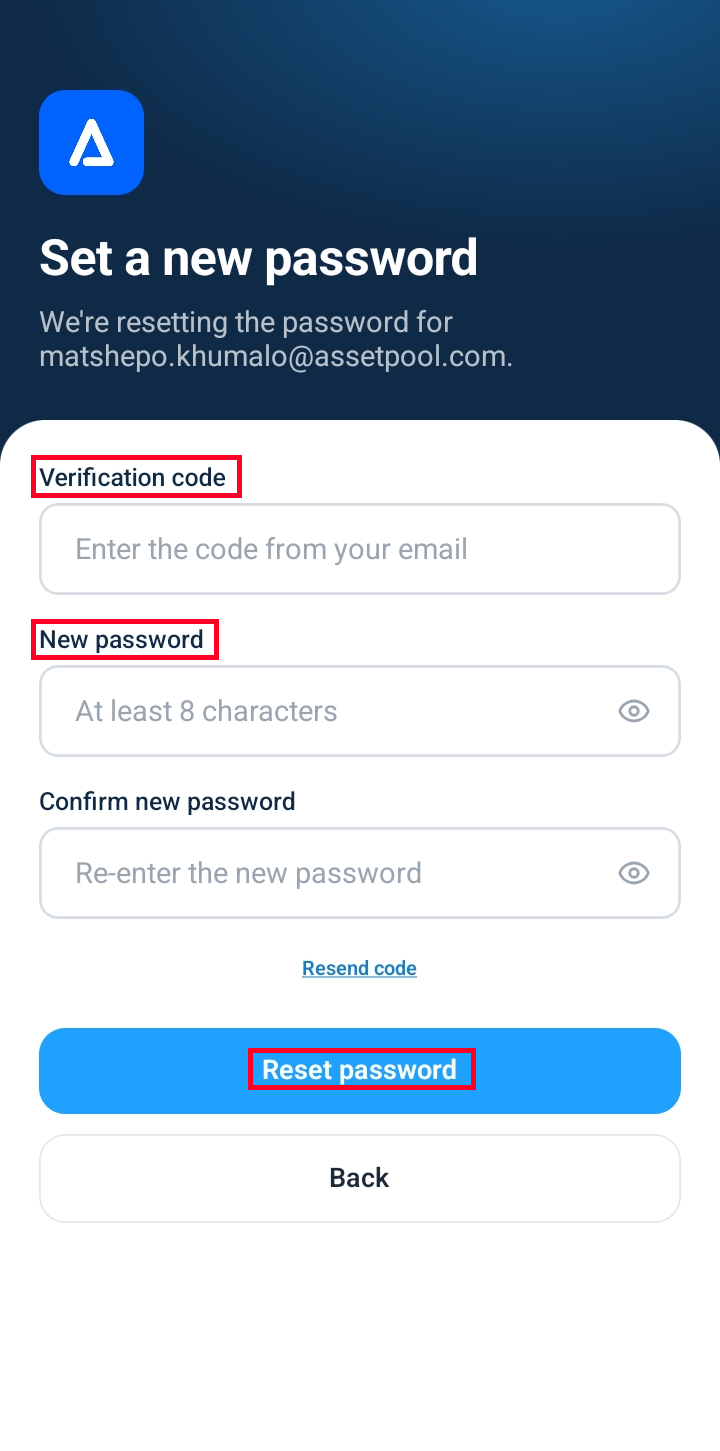
Return to the application's Confirm Reset screen and enter:
Verification Code: Enter the 6-digit code received via email.
New Password: Enter your new secure password.
Confirm New Password: Re-enter your new password to verify matching entries.
Click Confirm Reset (or Submit).
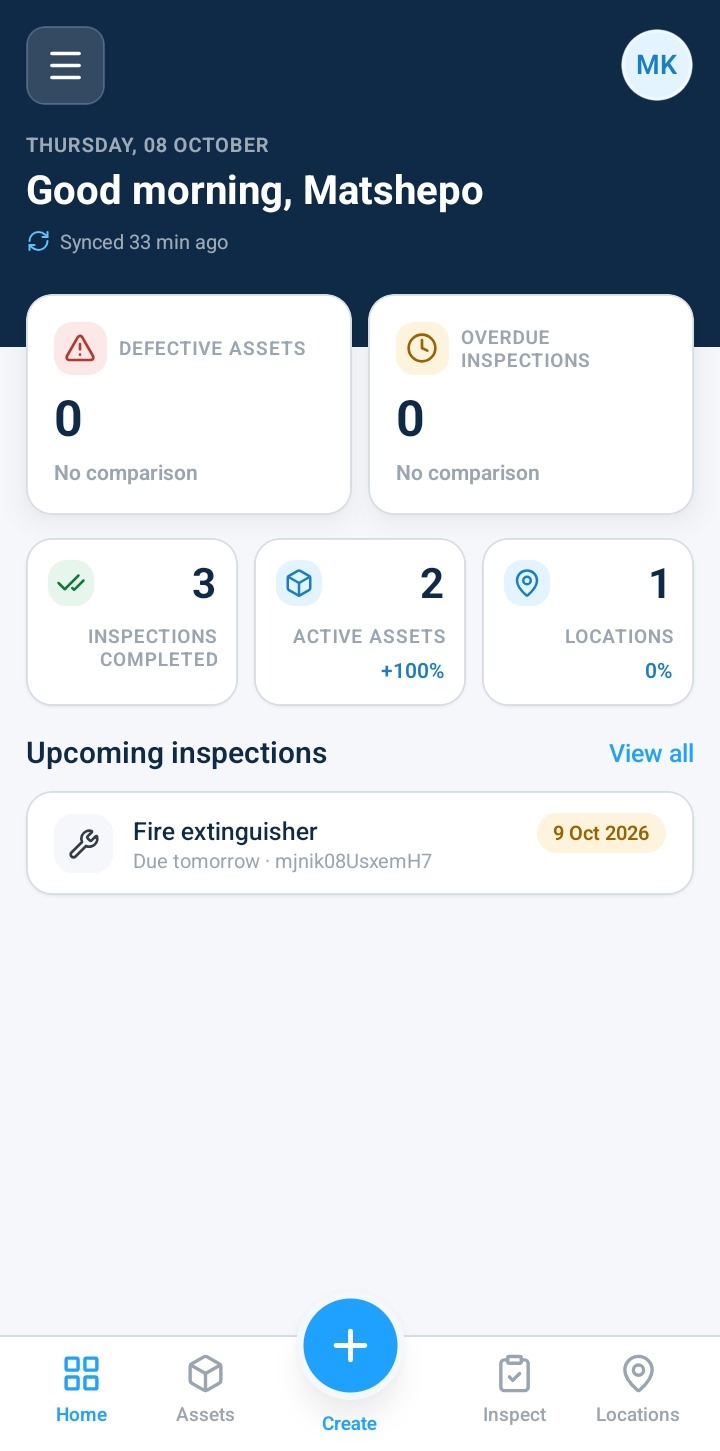
Upon successful reset, the application returns you automatically to the primary Sign-In screen.
Log in using your email address and your newly established password.
Verify that you are successfully authenticated and directed to the workspace Dashboard.
Password Requirements & Validation Rules
To keep your account secure, your new password must meet the following criteria:
Minimum Length: Must be at least 12 characters long.
Uppercase Letter: Must contain at least one uppercase letter (A-Z).
Lowercase Letter: Must contain at least one lowercase letter (a-z).
Number: Must contain at least one number (0-9).
Special Character: Must contain at least one special character (e.g., !, @, #, $).
Password Match: The New Password and Confirm Password fields must match exactly.
Frequently Asked Questions & Troubleshooting
What if I didn't receive the email code?
Check your Spam/Junk folder for an email with the subject "Your verification code".
If you still haven't received it, click Resend Code on the confirmation screen to dispatch a new verification email.
What if I entered the wrong email address?
Click Change Email on the confirmation screen to return to the previous step and enter the correct email address.
Why am I getting an "Invalid Code" error?
Double-check that you entered all 6 digits correctly from the latest email received. Requesting a new code invalidates any previous codes sent to your inbox.
What happens if my entry in the "Confirm New Password" field doesn't match?
The form displays an inline validation error ("Passwords do not match") and prevents submission until both password fields are identical.
Can I sign in using my old password after completing the reset?
No. Once the password reset is submitted and confirmed, your previous password is immediately invalidated across all desktop and mobile sessions.
Was this article helpful?
That’s Great!
Thank you for your feedback
Sorry! We couldn't be helpful
Thank you for your feedback
Feedback sent
We appreciate your effort and will try to fix the article