Overview
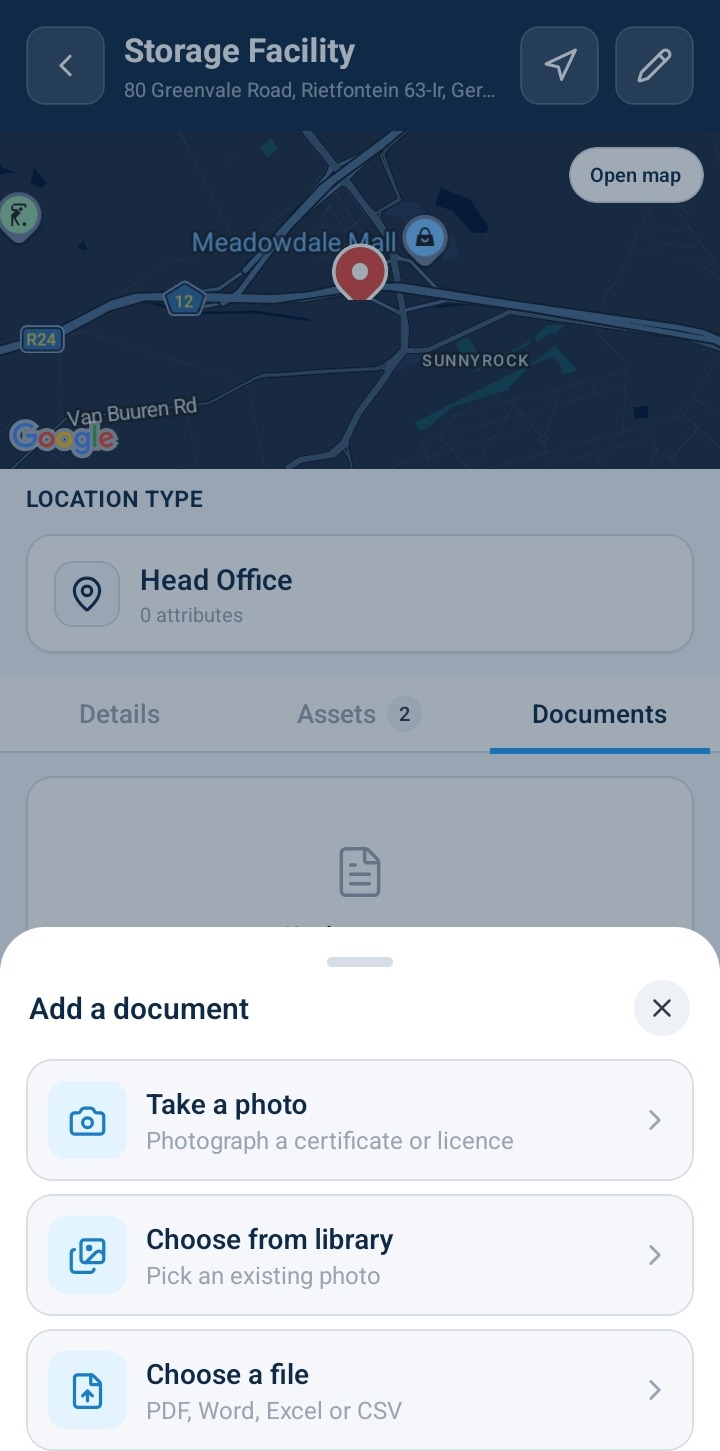
Site managers and field technicians can upload reference media, site plans, compliance documentation, or facility photos directly to a location record. Opening the Add Document Sheet (or attachment menu) on mobile or web exposes three upload options—Camera, Photo Library, and File Storage—allowing users to capture new photos on-site or select stored files from their device.
Add Document to Location
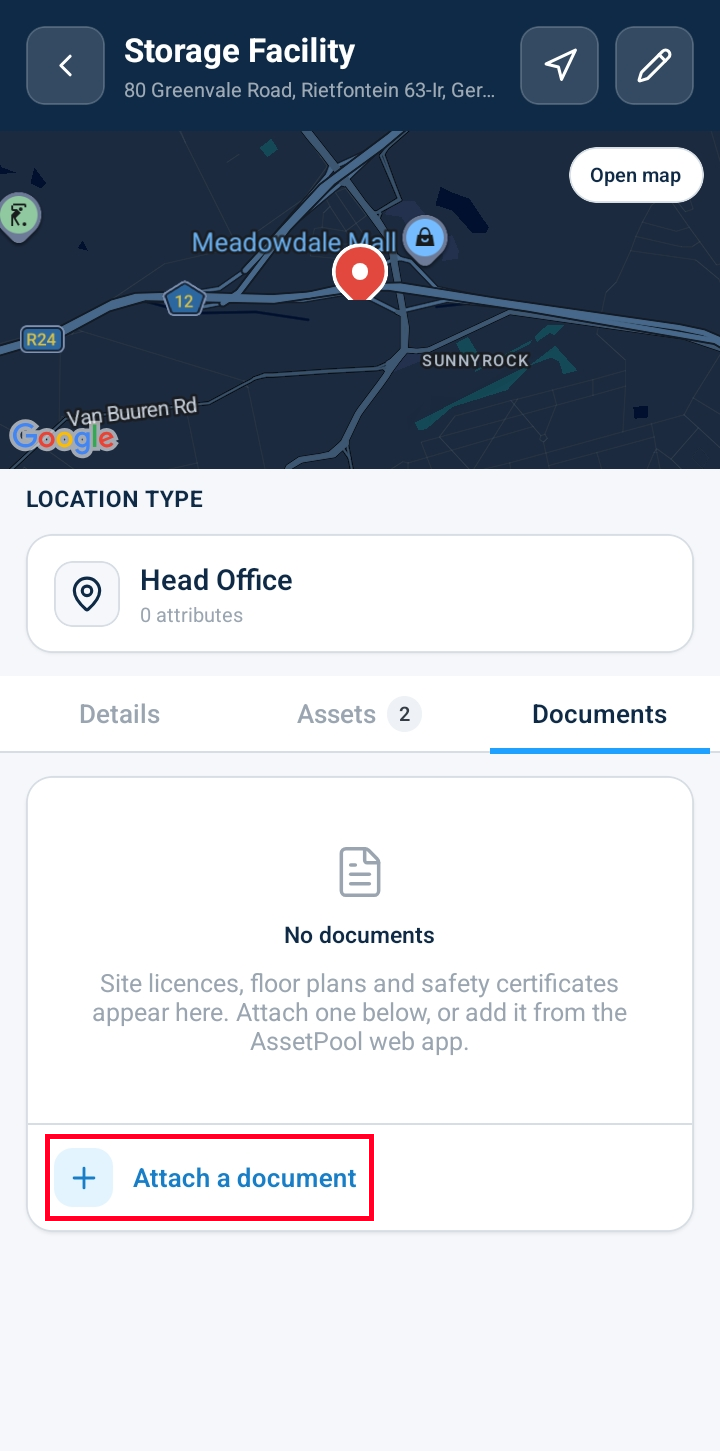
Navigate to Locations and select a location from the list to open its Location Detail screen.
Select the Documents tab.
Click + Attach a Document.
The Add Document Sheet menu expands, offering three capture and upload sources:
Take Photo (Camera): Launches your device camera to capture a real-time site photo or document snapshot.
Choose from Library (Photo Library): Opens your device photo gallery to select existing images or inspection photos.
Browse Files (File Storage): Opens your device file browser to upload PDF documents, spreadsheets, or technical manuals.
Add Document: Tap your preferred option.
If the selected option is either Choose from library or Choose a file then navigate to your device's Downloads or file storage directory and select the target document/photo. Enter a custom Document Name and add expiry date (optional) if prompted, then confirm the upload.
If the selected option is Take a photo then take a photo of the target document. Enter a custom Document Name and add expiry date (optional) if prompted, then confirm the upload.
Upon completion, the screen returns to the Documents tab.
Verify that the newly uploaded file displays in the documents list with its assigned name and file details.
Frequently Asked Questions & Troubleshooting
What file formats can be attached to a location?
The location document sheet supports image files (.jpg, .png, .heic), standard document files (.pdf, .docx, .txt), and spreadsheet formats.
Why does selecting the Camera option request extra permissions?
The mobile app requires explicit permission to access your device's camera hardware to take live site photos. Grant camera access when prompted by your operating system.
Are documents attached to a location accessible during offline inspections?
Yes. When field personnel download location work packages for offline work, attached documents and site reference photos are stored locally on the mobile device for offline review.
Was this article helpful?
That’s Great!
Thank you for your feedback
Sorry! We couldn't be helpful
Thank you for your feedback
Feedback sent
We appreciate your effort and will try to fix the article