Overview
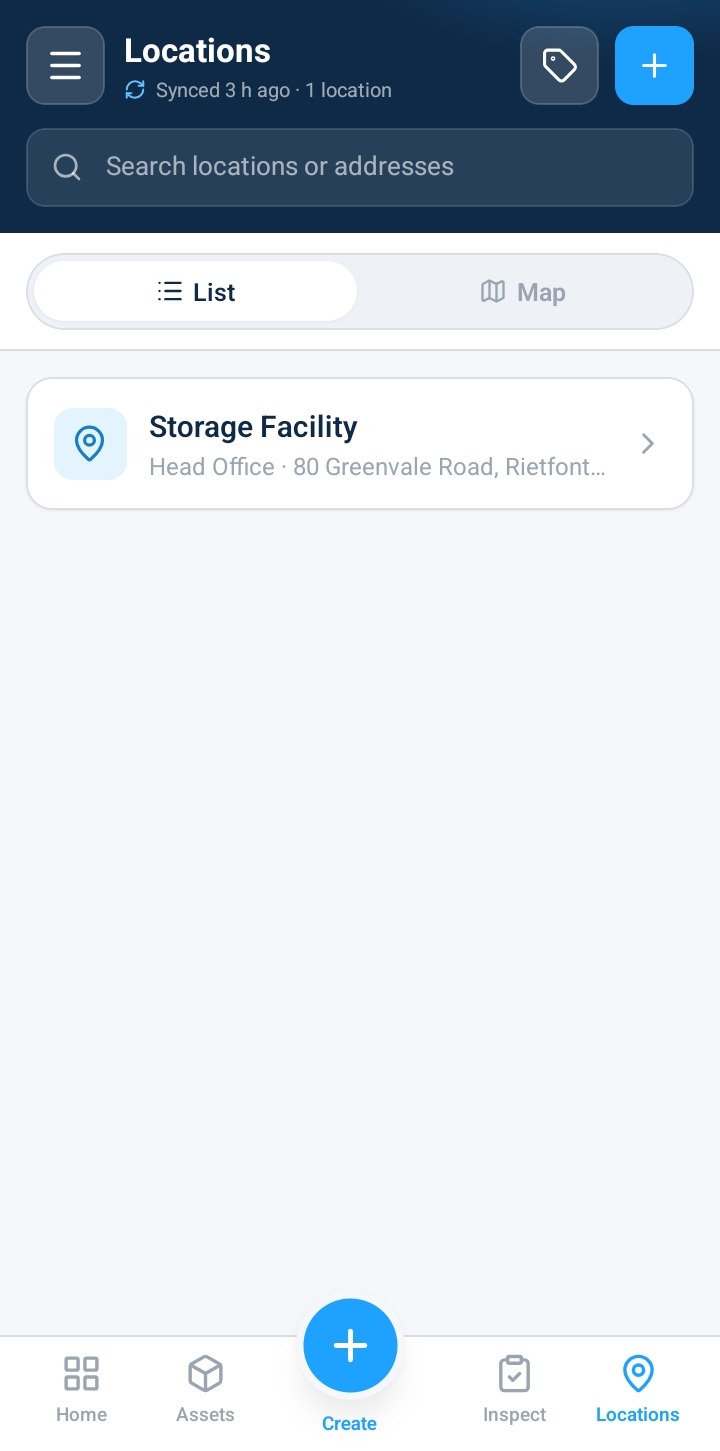
Creating a new location establishes a physical location or facility within your organization's directory. Once created, the system immediately displays the Location Detail screen, confirming that primary identity fields—including the site name, category type, default time zone, and primary contact phone number—have persisted correctly.
Pre-requisite:
1. Location:create or Location:access all permission.
Creating a Location
Navigate to Locations.
Tap or click + Add Location to launch the creation form.
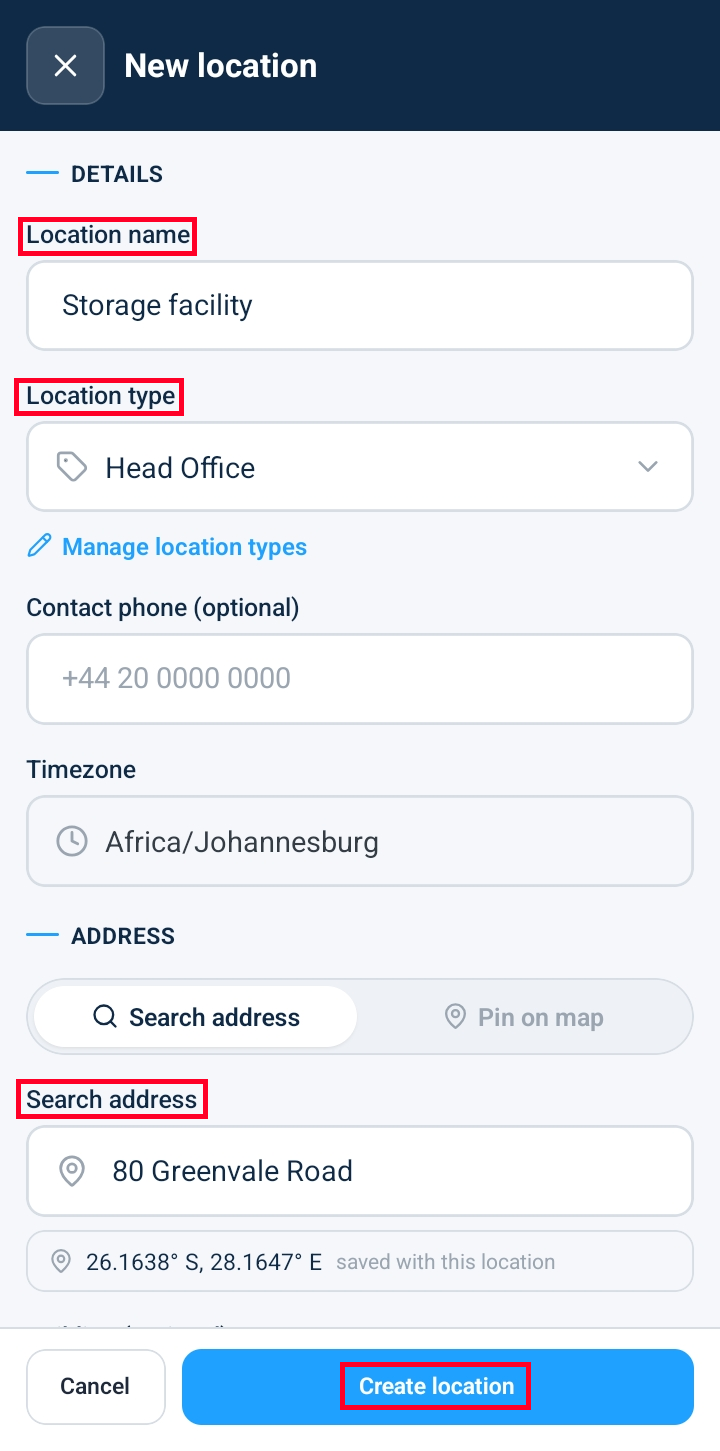
Complete the primary location details:
Location Name: Enter a unique title for the facility.
Location Type: Select the facility category from the dropdown.
Timezone: Verify or select the operating time zone (defaults to your organization's default time zone).
Contact Phone: Enter the primary site telephone number (optional).
Address: Search for address and select from list or pin from the map (optional).
Click Create Location.
Upon creation, the system opens the Location Detail view automatically.
Verify that all persisted details display accurately on the detail panel:
Site Name
Location Type
Timezone
Contact Phone Number
Address details
Frequently Asked Questions & Troubleshooting
What happens if I leave the Location Timezone set to default?
The system automatically assigns your workspace's default time zone to the new location, ensuring chronological consistency for all local inspections and activity logs recorded at that site.
Can I edit location details after creating the site?
Yes. Click Edit Location on the Location Detail page at any time to update the site name, contact phone number, category type, or operational status.
Who can view newly created locations?
Once created, the location becomes available immediately in the global Locations directory and will appear in location selection pickers for asset assignments and field inspections across mobile and web interfaces.
Was this article helpful?
That’s Great!
Thank you for your feedback
Sorry! We couldn't be helpful
Thank you for your feedback
Feedback sent
We appreciate your effort and will try to fix the article